This is where the 2016 Dispatch publications reside when archived. This page is organized as follows:
The Dispatch was published on the following dates in January 2016:
01/14/2016
January schedule for important processing dates.
October Discontinuance – January 14th
MMIS Monthly – January 15th
January Release – January 17th
Review Batch Run – January 19th
Change – January 20th
Come-Up Month Available – January 22nd
KEES credentials need to still be maintained for staff who are no longer actively working in KEES but are still using ImageNow. The KEES User ID and Password are used for both KEES and ImageNow. As of the first of the year EES no longer works on medical cases and do not update medical cases in KEES. EES still has the ability to view medical cases and still use ImageNow to image, index, re-index and view non-medical documents. Please keep your KEES password current and follow the KEES security processes to reset a password or request new access for ImageNow.
Several job aids have been updated to reflect the recent changes in agency responsibility and workflow. The updated job aids are now on the KEES Repository. Please see the KEES Repository for the updated job aids.
A recent review of task issues has identified two common Registration worker errors. Please remind your Registration worker of the following steps.
When the Registration worker determines that an e-App is a duplicate of another e-App, they need to remember to both update the e-App status to Not Accepted (and leave it unlinked from the case) AND they need to Void the Intake task.
When the Registration worker is done “linking” the e-App they need to take a moment to make sure they actually did what they thought they did. We are finding LOTS and LOTS of eApps that are not linked to a case, but the Registration worker stated in their Journal entry that they DID link the e-App to the case.
The Discontinuance batch job for the months of July, September, October, November and December were not run in their respective months due to issues with the batch job. The issues were resolved in the November 19th Release and the Discontinuance batches for the previous months are being run. For now one previous monthly Discontinuance Batch is being run every month. We will share the finalized plan to bring the Discontinuance Batch current, once it is complete. Below is a list of Monthly Discontinuance batch jobs that have been run and when the batch job ran.
An additional defect was identified and fixed for the January 14th Discontinuance batch job. This defect caused a small number of individuals that should have been discontinued in the previously run Monthly Discontinuance batch jobs, to not be picked up. The batch job that runs on January 14th will discontinue those individuals as of 1/31/2015.
|
Monthly Discontinuance Batch Job |
Date Batch Job Ran |
Additional Defect Fix Correction |
|
July |
11/19/15 |
1/14/2016 |
|
August |
8/15/2015 |
1/14/2016 |
|
September |
12/17/2015 |
1/14/2016 |
|
October |
1/14/2016 |
N/A |
|
November |
TBD |
N/A |
|
December |
TBD |
N/A |
|
January |
TBD |
N/A |
Call Center Phone Number: 844-723-5337
Business Support Email: KEES.HelpDesk@ks.gov
Technical Support Email: KEES.Tier1@ks.gov
Training Email: Training@kees.ks.gov
KEES Repository KEES User Manual
Below is the January schedule for important processing dates.
October Discontinuance – January 14th
January Release – January 17th
Review Batch Run – January 19th
Change – January 20th
MMIS Monthly – January 21st
Come-Up Month Available – January 22nd
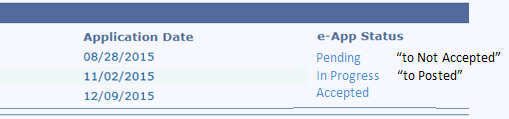
When the case you are processing has multiple e-Apps linked to it that are in Pending or In Progress status, EDBC only updates the most current dated e-App to Accepted. The remaining older e-Apps remain Pending or (In Progress).
In the example below, once EDBC has been run, the e-Application Date of 12/09/15 updates to Accepted. The remaining 2 e-Apps are Pending (or In Progress). Workers can now manually update the older linked application’s Status and the worker should manually update the older linked e-App Status to Posted or Not Accepted.
Pending e-Apps should be updated to Not Accepted
In Progress e-Apps should be updated to Posted
It is important to remember that once an e-App has been linked to a case, no matter what the e-App Status reflects, ALL DATA ACCEPTANCE should be completed. If you update a linked e-App status to ‘Posted’ or ‘Not Accepted’ but you do not complete the data acceptance, the data acceptance does not go away, but the “New” indicator that displays in Task Navigation WILL NO LONGER display - - the New indicator next to the individual record itself does not go away.
A number of cases have been identified that should have been transferred to the CH at the time of Phase 2 go live, however converted to FCM. If you have an Aged Out Foster Care Medical case which converted with the FCM code please utilize the following steps to transfer the case to KanCare.
Check MMIS to determine if they are open for FC medical. User will want to establish Aged Out Medical for the first of the month following the last date of coverage displayed in MMIS.
Verify an application was received by DCF.
Scan required documentation into Image Now (i.e. Extended Medical application, birth certificate, ID, reviews).
Update the OPA page with an end date for the foster care aid code (the last date of the month prior to the month worker will run EDBC -) and verify the Foster Care Information section is complete. (Agency and Court Number).
Run EDBC for the come up month. AGO coding should display on the EDBC Detail Summary page. See EDBC Results in the User Manual under PPS.
If the EDBC Results do not show the AGO coding please refer to the User Manual: Prevention and Protection Services (PPS) Medical: PPS Case Processing: Troubleshooting for Case Processing. Check all data collection pages to verify information is correct. If problems persist contact the KEES Helpdesk.
NOTE: For AGO cases when the Case Head is 21 to 25 years old, and EDBC does not display an AGO code, complete a Medical Override (see the User Manual: EDBC Determination: EDBC Results: Medical Summary). On the Medicaid EDBC Override Detail page complete the fields as follows:
Test = Foster Care Extended Medical
Test Result = Pass
FPL = 0
Start Date = First day of the benefit month for which EDBC was run
End Date = Last day of the benefit month for which EDBC was run
Person = Select the person eligible for the Aged Out Foster Care Medical (AGO)
Role = MEM
Aid Code = Foster Care Medical – Aged Out
Reassign using the instructions in the User Manual in Worker ID Management section. See Transfer a Program Block or Case.
Reassign one case at a time to KanCare Clearinghouse ghost ID KH0206Q100.
Journal all actions taken.
Call Center Phone Number: 844-723-5337
Business Support Email: KEES.HelpDesk@ks.gov
Technical Support Email: KEES.Tier1@ks.gov
Training Email: Training@kees.ks.gov
KEES Repository KEES User Manual
The Dispatch was published on the following dates in February 2016:
02/04/2016
Below is the February schedule for important processing dates.
MMIS Spenddown Met/Unmet – February 12th
February Release – 14th - Production Release
Review Batch Run - 15th - Tentative
November Discontinuance - February 15th - Tentative
Change - February 18th
MMIS Monthly – 19th
Come-Up Month Available – 20th
ImageNow shortcut keys (or “hotkeys”) were added to the User Manual in the Imaging folder on the Access ImageNow page.
Family Medical Programs Protecting Paid Coverage at Review
Call Center Phone Number: 844-723-5337
Business Support Email: KEES.HelpDesk@ks.gov
Technical Support Email: KEES.Tier1@ks.gov
Training Email: Training@kees.ks.gov
KEES Repository KEES User Manual
Below is the February schedule for important processing dates.
MMIS Spenddown Met/Unmet – February 12th
February Release – 14th - Production Release
Review Batch Run - 15th - Tentative
November Discontinuance - February 15th - Tentative
Change - February 18th
MMIS Monthly – 19th
Come-Up Month Available – 20th
Users should be able to complete changes to Long Term Care arrangements without using overrides. Changes are being made to KEES on 02/14 to add new logic for Long Term Care cases.
KEES will use the $475.00 protected income limit for the month of admission and the month of discharge (for non-HCBS cases). No override should be needed for the correct patient liability. KEES will continue to use the higher $727.00 PIL for Temporary Stays from HCBS/PACE. KEES will now generate the correct TC/TM coding for Temporary Stays from Independent Living and HCBS. The user should not need to complete any overrides for coding or dates. If the dates are not correct on the EDBC result the LTC Data Detail should be corrected and EDBC run again.
KEES will now *fail* an EDBC budget with overlapping LTC Dates. See Troubleshooting under LTC in the User Manual for information. If an EDBC fails for overlapping dates the user needs to correct the LTC Data Detail pages and re-run EDBC.
Make sure to use the Living Arrangement Changes section of the User Manual when completing any change in Living Arrangement for Elderly and Disabled cases.
Call Center Phone Number: 844-723-5337
Business Support Email: KEES.HelpDesk@ks.gov
Technical Support Email: KEES.Tier1@ks.gov
Training Email: Training@kees.ks.gov
KEES Repository KEES User Manual
February schedule for important processing dates:
MMIS Spenddown Met/Unmet – February 12th
February Release – 14th - Production Release
Negative Change - February 18th
MMIS Monthly – 19th
Come-Up Month Available – 20th
Review Batch Run – February 22nd Tentative
November Discontinuance batch – Canceled for February
New instructions have been issued regarding applications subject to a 90 day medical processing standard. These are cases that have a pending disability determination. Accenture is producing a report of potential cases that may meet the criteria. These cases need to be researched and determined if they should be reassigned to the SSI Ghost Worker ID, KH0206Q103.
The report will be coming shortly this week and should be worked as soon as possible. See policy information below (Medical Application Processing Standards) to work this report. Instructions on transferring a case to the Ghost Worker ID is located in the KEES User Manual in the Transfer a Program Block or Case document, under the Worker ID Management folder.
Starting this week staff have started a new process with how multiple applications are registered. Registration staff will only need to e-Link the first application to a case. Subsequent applications will be journaled and the additional applications will be re-indexed to the case. This also changes how eligibility locates multiple applications for processing. The job aids and training material given to the Clearinghouse staff this past week will be incorporated in the KEES User Manual.
Call Center Phone Number: 844-723-5337
Business Support Email: KEES.HelpDesk@ks.gov
Technical Support Email: KEES.Tier1@ks.gov
Training Email: Training@kees.ks.gov
KEES Repository KEES User Manual
DRAFT - 02-18-16
Per KEESM 1413, Medical Applications are subject to a timeliness standard of 45 days. However, Medical Applications in need of a disability determination as a condition of eligibility are subject to a timeliness standard of 90 days. This standard is applicable to any application where the final Medicaid determination is dependent upon a finding of disability or blindness. It is not applicable when a determination can be made under another category first.
Example: An application is submitted for a child who claims a disability, but is not receiving Social Security Disability or SSI. The child is determined under a MAGI program and is found eligible. The case is subject to the 45 day criteria because the disability determination was not a factor in the determination. However, if the child is found ineligible under a MAGI category, a Non-MAGI determination is needed. As the disability determination would then be required for the determination, the subsequent determination would be subject to the 90 day criteria.
Effective immediately, all determinations subject to the 90 day criteria will be maintained in a separate Ghost Worker ID. The ID is KH0206Q103. All cases pending a disability determination are to be registered to the new GW ID. Cases meeting the criteria must be moved to the new Special worker ID.
All cases with any part of a determination pending a disability are to be included in the special workload. The Worker ID will house cases managed by the Clearinghouse as well as an Intake Manager.
This includes:
Requests that require a PMDT referral and are still pending a determination
Requests that have been approved by PMDT, but are still pending a different disability onset date from SSA
Requests that were denied PMDT, but are pending with Social Security (a pending program block should exist on these cases)
Requests that are pending with Social Security are not going through PMDT
Requests that are pending due to a direct referral to DDS.
MediKan Cases
NOTE: Cases where the PMDT decision was fully favorable to the client (including the effective date) are not retained in the special caseload. Staff shall continue to set future dated tasks to comply with required 6 month status checks on these cases. As indicated above, current pending cases that meet this criteria shall be moved to the new GW ID. To assist with the, a report has been produced that provides a list of potential cases for the new GW ID. Staff must review all cases and, if appropriate, follow the instructions listed below to move the cases to the new ID.
Is there a pending Medicaid decision based on disability criteria? This is indicated by the following:
A pending program block for the individual attesting disability
An indication in the journal that an outstanding decision regarding an onset date still exists
A current MediKan beneficiary
Is there a pending disability decision?
The journal/case notes indicate there is an outstanding request with PMDT or DDS
A current EATSS record (TPQY or SDX or BENDEX) does not indicate there is a current disability determination. Except for new applications (within 20 days of referral) there should be an indication an application was received for SSI, Social Security or both. In some cases, an individual may be receiving a Social Security payment, but is not considered disabled. The EATSS record may also indicate the individual is involved in an active appeal.
Reminder: When checking EATSS, if you receive the error message ‘ Client Not in a Qualified System’, check the case the following day. Generally, cases processed after 3pm will not be available until two days later.
Call Center Phone Number: 844-723-5337
Business Support Email: KEES.HelpDesk@ks.gov
Technical Support Email: KEES.Tier1@ks.gov
Training Email: Training@kees.ks.gov
KEES Repository KEES User Manual
Below is the March schedule for important processing dates.
MMIS Spenddown Met/Unmet – March 11th
March Production Release – March 20th
Review Batch Run – March 15th
Discontinuance Batch – Canceled for March
Negative Change - March 18th
Come-Up Month Available – March 22nd
MMIS Monthly – March 23rd
On Monday, February 22nd, we sent a message about some cases producing 2 budgets, when the circumstances change on the case and the child falls within the CHIP guidelines. The long term fix has been identified and is scheduled to go in to production this weekend. In the meantime Family Medical should continue to use the short-term solution.
Friday, February 26, 2016, the KEES system staff User IDs for KEES users who were assigned access prior to 2016, but never logged on to KEES are being removed. If you are one of these users and find later that you need this access, contact your supervisor who can initiate a request for new access.
When requesting access for new staff using OIM, be sure to check KEES before you submit an OIM request. If this person ever had access (whether they logged on or not), their name and e-mail address will already be known to KEES. This means a KEES Change Request must be submitted along with a newly-completed KEES Security Agreement and a valid Security Awareness training document. The SSA Security Awareness and HIPAA documents would still be on file. Please see the Submitter Process Guide in the KEES Security Access section of the KEES Repository.
As of Monday, February 15th, the Long Term Care Living Arrangement process has changed due to an enhancement that was implemented over the weekend. Please be sure to refer to the Living Arrangement Changes section of the KEES User Manual for the updated steps to complete any change in Living Arrangements for Elderly and Disabled cases.
KEES Repository & User Manual Training
Two weeks ago the Clearinghouse received training on the KEES Repository & User Manual. As a follow-up to the training we have several pointers for staff in using the KEES Repository & User Manual.
The Repository & User Manual are updated weekly.
You can search the KEES User Manual by topic or keywords.
To narrow a search use “quotation marks” around multiple words. This tells the search engine that you want the exact words. The KEES User Manual Introduction page has an example of this.
The search function brings back information that is located in the KEES Dispatch as well.
The back issues of the KEES Dispatch are stored in the User Manual.
Save the KEES Repository link in your favorites so that you can access the information quickly.
We are constantly looking for ways to improve the Repository and User Manual. Our goal is to have a useful and relevant tool for the end user. If you have suggestions on ways to improve the KEES Repository & KEES User Manual, please send them to the KEES Business Support e-mail.
Call Center Phone Number: 844-723-5337
Business Support Email: KEES.HelpDesk@ks.gov
Technical Support Email: KEES.Tier1@ks.gov
Training Email: Training@kees.ks.gov
KEES Repository KEES User Manual
The Dispatch was published on the following dates in March 2016:
MMIS Spenddown Met/Unmet – March 11th
March Production Release – March 20th
Review Batch Run – March 15th (Tentative)
Discontinuance Batch – Canceled for March
Negative Change - March 18th
Come-Up Month Available – March 22nd
MMIS Monthly – March 23rd
Remember when creating Journal entries that our consumers own their case files. When cases go to appeal, all Journal entries are included. Ensure entries contain strictly facts of the case; not personal opinions.
Previously users attempting to process HCBS/HI-TBI Waiver benefits for an individual over age 55, but under the age limit, were instructed to send a request to the Help Desk to authorize benefits.
Update: Users are now being instructed to send these requests via email to the Field Supervisors, Rod Estes and Carol Brown, so that benefits can be authorized.
Rod Estes: restes@kdheks.gov
Carol Brown: cbrown1@kdheks.gov
To ensure the request is easily identified, the Subject line of the e-mail should include:
Case Number
The text “HI Waiver”
The body of the e-mail should include all pertinent information needed to run, save and accept the EDBC result; such as:
The benefit month being run
The expected patient liability
NOTE: Prior to making the request it is important that:
All necessary data collection pages are completed
The worker has a 3160 on file and imaged into ImageNow
In last week’s Dispatch we reported that some cases were producing 2 budgets, when the circumstances change on the case and the child falls within the CHIP guidelines. The permanent fix went in on Sunday, February 28th. The affected cases are no longer creating two budgets and Family Medical workers do not need to use the short-term solution.
Call Center Phone Number: 844-723-5337
Business Support Email: KEES.HelpDesk@ks.gov
Technical Support Email: KEES.Tier1@ks.gov
Training Email: Training@kees.ks.gov
KEES Repository KEES User Manual
March schedule for important processing dates:
MMIS Spenddown Met/Unmet – March 11th
Discontinuance Batch – Canceled for March
Negative Change - March 18th
March Production Release – March 20th
Review Batch Run – March 22nd
Come-Up Month Available – March 22nd
MMIS Monthly – March 23rd
KEES, SSP and PE Tool down for system upgrade –March 27th at 8:00am to 2:00pm
We received reports that some documents imaged on February 12th displayed a created date of February 5th. This issue was resolved and documents captured with the incorrect date have been corrected. If you see a document that is still in error, report the document to the KEES Help Desk to be corrected.
Always contact your assigned KEES Submitter when you know someone is leaving or you have new staff coming on board. Also, do not forget about Worker IDs for transferring staff. You will need to make changes to the Worker ID when appropriate.
Any change to current staff (those who are known to KEES as having current or previous access, whether Active or Inactive) must be made through the KEES Access Change Request form. You can find a copy of that form on the KEES Repository under the heading KEES Security Access. Be sure to check the Submitter Process Guide for details on required documentation and form requirements for specific changes.
Call Center Phone Number: 844-723-5337
Business Support Email: KEES.HelpDesk@ks.gov
Technical Support Email: KEES.Tier1@ks.gov
Training Email: Training@kees.ks.gov
KEES Repository KEES User Manual
March schedule for important processing dates:
Discontinuance Batch – Canceled for March
Negative Change - March 18th
March Production Release – March 20th
Review Batch Run – March 22nd
Come-Up Month Available – March 22nd
MMIS Monthly – March 23rd
KEES, SSP and PE Tool down for system upgrade – March 27th at 8:00am to 2:00pm
On Sunday, March 20th there were two CRs released into production that affect searching for tasks in KEES and how to update Non-Active consumer’s demographics. Below is a description of the changes and the location of the instructions in the KEES User Manual.
In addition to searching for tasks with a status of Assigned and New, you can now also search for Completed and Rejected tasks. This additional functionality will help when a task is incorrectly completed or rejected, and to assist in problem solving a cases.
The instructions are available in the KEES User Manual KEES User Manual/ Task Management/ Searching for a Completed or Rejected Task.
The MMIS interface logic now sends updated data for consumers who are no longer active. 6 demographic data elements will be sent to the MMIS. Name, Date of Birth, Date of Death, Gender, SSN & mailing Address. The Business Support Team will be able to update an inactive consumer’s data.
Policy will be providing additional instructions as to when this functionality will be used.
Instructions on sending a request to update an inactive consumer, to the Business Support are available in the KEES User Manual: KEES User Manual/ Family Medical/ Non-Financial Data Collection-Family Medical/Individual Demographics - Discontinued or Not Active - Family Medical.
The Verification Page Job Aid provided instructions on the Real Time Interface History List page and an updated Request Verification Job Aid was also attached.
This is a reminder to staff to be vigilant in protecting the Protected Health Information (PHI) of the KEES consumers. Staff should use only the “minimum amount of protected health information needed to accomplish the intended purpose of the use, disclosure or request.”* The practice of minimal necessary use and disclosure helps to protect our consumer’s information from accidental or unintentional disclosure. A case number, Client ID or e-App ID is usually sufficient for emails to the Business Support Team or the short description of an incident ticket. KEES staff has access to KEES and can look up any additional information they need to answer the e-mail or incident ticket.
Also remember to remove any identifying information in any attachments you are sending. Most of the screenshot tools have the ability to edit or blur sections of the screenshot.
“Protected Health Information (PHI). The Privacy Rule protects all "individually identifiable health information" held or transmitted by a covered entity or its business associate, in any form or media, whether electronic, paper, or oral. The Privacy Rule calls this information "protected health information (PHI).*
“Individually identifiable health information” is information, including demographic data, that relates to:
the individual’s past, present or future physical or mental health or condition,
the provision of health care to the individual, or
the past, present, or future payment for the provision of health care to the individual,
and that identifies the individual or for which there is a reasonable basis to believe it can be used to identify the individual.13 Individually identifiable health information includes many common identifiers (e.g., name, address, birth date, Social Security Number). “*
*U.S. Department of Health and Human Services, Office of Civil Rights, Summary of the HIPAA Privacy Rule, Revised May 2003. Accessed 3/16/2016.
Call Center Phone Number: 844-723-5337
Business Support Email: KEES.HelpDesk@ks.gov
Technical Support Email: KEES.Tier1@ks.gov
Training Email: Training@kees.ks.gov
KEES Repository KEES User Manual
April schedule for important processing dates:
Buy-In Deletion Report available –April 16th
Spenddown Met to Unmet- April 15th
Review Batch Run – April 15th- tentative
Discontinuance Batch – Postponed for April
Negative Change – April 18th
Timely Notice Closure – April 19th
Buy-In Deletion Report completed- April 19th
Come-Up Month Available – April 21st
MMIS Monthly – April 21st
April Production Release – April 24th
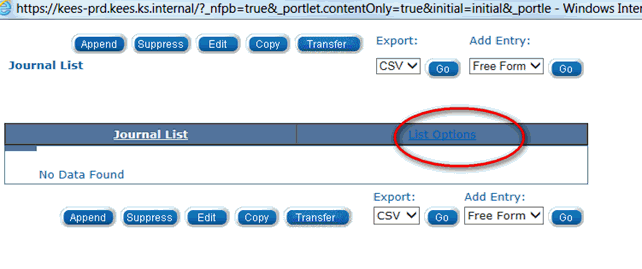
Recently we have received reports of journal entries disappearing. A review of journals in the system does not indicate that journals are disappearing. We believe that the search parameters are not being set correctly to pull back the older journals. Below are two pointers that will help when searching for journals.
The default search window is three (3) months of journals. To view journals further back you will need to change the date range on the List Options page. The List Options page link is difficult to see on the Journal List page because it is blue on blue. Below is a screenshot of the Journal List page with the List Options link circled.
The calendar functionality on the date range segment does not pick up the new dates for a search. If you key in the start date and end date the search will bring back the journals in the date range.
If after applying these tips, you still believe that you have journals disappearing, provide us with the details around the journal you expect has disappeared. We will need the case number, the work ID and the approximate date of the Journal.
Once a duplicate is identified, the information needs to be reported to the KEES Help Desk through Service Now. HP has been contacted directly by MAXIMUS eligibility staff on occasion regarding duplicate ID’s. This is not the proper procedure. The worker should go through the Floor Walker or Lead and have an incident ticket created in Service Now, so the BST can determine the correct ongoing Client ID.
Be sure to check the LTC Details on each EDBC that is run for Long Term Care cases. Please reference the KEES User Manual. Since the fix went in KEES now creates the “TC” code, if a case hasn’t been touched since conversion, we’re seeing staff just Accepting the EDBC but now it may have TC codes. That’s because the LTC Data Details page may have the “Length of Stay” as “30 days or less” which creates the TC. That needs to be changed to “More than 30 days” and the correct LTC code should then display on the EDBC. If the TC code is present, the Patient Liability may be wrong also as it will be using the Independent Living PIL in the budget. It is ALWAYS best practice to check the “budget” hyperlink to insure ALL the details are correct before Accepting and Saving the EDBC.
When a consumer requests prior medical, but they did not reside in the State of Kansas and are not otherwise considered a Kansas resident in the prior medical months, start date their address with the month that they moved to Kansas, and start date their Kansas Residency record with the first prior medical month. Rules will see the residency record and will expect to see a corresponding Kansas address. When it doesn’t find one, it will deny the consumer for ‘State Residency’.
Call Center Phone Number: 844-723-5337
Business Support Email: KEES.HelpDesk@ks.gov
Technical Support Email: KEES.Tier1@ks.gov
Training Email: Training@kees.ks.gov
KEES Repository KEES User Manual
The Dispatch was published on the following dates in April 2016:
April schedule for important processing dates:
Buy-In Deletion Report available – April 16th
Spenddown Met to Unmet - April 15th
Discontinuance Batch – Postponed for April
Negative Change – April 18th
Timely Notice Closure – April 19th
Buy-In Deletion Report completed - April 19th
Come-Up Month Available – April 21st
Review Batch Run – April 21st - tentative
MMIS Monthly – April 21st
April Production Release – April 24th
As of Friday April 1st, consumers can call the KanCare Clearinghouse and check the status of a submitted application. When a consumer calls the KanCare Clearinghouse, they are given the option to check the status of an application. After answering some identifying questions the consumer will be provided a status of their application. This new functionality is available to the consumer 24/7 and should help to reduce the volume of calls to the KanCare Help Desk.
Currently the information that the consumer receives is based upon a weekly file that is sent to Maximus Thursday evening. Once the enhancements go in to effect on April 24th, the information provided to the consumer will be updated daily.
Information entered on the Contact Data Collection page related to address is individual specific. The address data carries with the individual from case to case. Update the address information necessary for the specific individuals the address change applies to, this may not be everyone listed on the case. A good tip for a worker to determine if further research may be needed prior to updating the address information is to review the Case Summary and Contact pages. If there are individuals coded ‘Temporarily out of the home’ or ‘Permanently out of the Home’ and/or they already have a different address from the case head, workers should complete additional research to determine if the individuals may be active on another case, such as Foster Care.
Changing the address information can have downstream impacts for individuals even when they may no longer be an active member of the case. This has been done for children who are currently in Foster Care. The child was placed in Foster Care and their address updated to their placement provider’s. The child was coded as ‘Temporarily out of the home’ on their parents case. Their parents reported an address change and the child in Foster Care’s address was also changed. Situations such as these, need to be avoided at all costs.
As many may know, the Business Support Manager, Jenifer Telshaw has accepted a position with another state agency and her last day with KEES will be Friday, April 8th.
Please direct all work-related issues to the KEES Help Desk Help Desk KEES.HelpDesk@ks.gov . For specific issues or escalated items contact Glen Yancey GYancey@kdheks.gov.
Call Center Phone Number: 844-723-5337
Business Support Email: KEES.HelpDesk@ks.gov
Technical Support Email: KEES.Tier1@ks.gov
Training Email: Training@kees.ks.gov
KEES Repository KEES User Manual
April schedule for important processing dates:
Buy-In Deletion Report available – April 16th
Spenddown Met to Unmet - April 15th
Discontinuance Batch – Postponed for April
Timely Notice Closure – April 18th
Negative Change – April 19th
Buy-In Deletion Report completed - April 19th
Come-Up Month Available – April 21st
Review Batch Run – April 21st - tentative
MMIS Monthly – April 21st
When staff report issues with KEES an incident ticket is opened and the reporting caller is notified by Email of the incident ticket being opened. Once the issue is resolved, the incident ticket is closed and the caller who reported the issue is notified by Email that the incident has been resolved. When the caller receives the closure Email, it is important for the caller to read the closure notes carefully. Often times the Help Desk includes additional instructions for the user to complete on the case. If an issue still persists with the case, please contact the Help Desk.
Call Center Phone Number: 844-723-5337
Business Support Email: KEES.HelpDesk@ks.gov
Technical Support Email: KEES.Tier1@ks.gov
KEES Repository KEES User Manual
When reporting an incident to the Help Desk and the matter is an issue with CHIP, please include the word “CHIP” in the short description. Also, before submitting incident tickets to the Help Desk, first check the new training materials, the new policy memo, and the KEES User Manual.
EDBC no longer needs to be overridden in order to get the correct CHIP start date, or premium start date.
The MMIS/Prem. Bill Override field has been replaced with two new fields;
CHIP Start Date field
Prem Bill Start Date field
The CHIP start date is set automatically by EDBC rules, following current policy. The premium billing start date is set to the first full month of CHIP eligibility.
It is no longer necessary to run the current benefit month first in order to approve CHIP coverage and prevent the program from closing out.
Always run EDBC months in order. If EDBC is not run in order, the CE Date and the Review Due date will not set correctly.
When CHIP coverage will not be starting in the month of application, the CHIP child will be denied with a new Role Reason of ‘Future CHIP Start Date’. This Role Reason will behave differently depending on the program composition.
When the program becomes Denied, the worker will need to rescind the ‘Future CHIP Start Date’ child(ren) using a new Rescind Reason of ‘CHIP Start in Future’. This new Rescind Reason will be dynamically displayed on the Rescind Detail page only when a child has a status of Denied and a Role Reason of ‘Future CHIP Start Date’.
All children with a common CHIP start date will be grouped together for rescind purposes. The Effective Date for the rescind on the Rescind Detail page will still display as the first day of the month of application. However, the children will be reopened starting the first of the current benefit month.
It is important to always verify in the Program Status Change block of the Rescind Confirmation page that the program is changing from Denied to Pending and that the Begin Date listed next to Pending is the first day of the current benefit month.
EDBC rules will no longer allow Title 21 to pass in retro months unless the child is a newborn who meets the criteria for ‘Title 21 Deemed Newborn’ (PLT/DN) -or- they are a ‘Title 21 Newborn’ (PLT/C3) that was reported within 31 days of DOB.
Additionally, if the worker attempts to process the month of application prior to processing the retro months for these children, a validation message will display upon clicking the Accept button. The message “CHIP Start Date is before the Application Date. Add a MAGI Requested Medical Type Retro Month record and Run EDBC.” will display, warning the worker that they need to back out of their EDBC and process the retro month(s) first.
EDBC rules recognize when a child meets the criteria for ‘Title 21 Deemed Newborn’ and CE will be set to match that of the mother.
EDBC rules recognize if Title 19 benefits are authorized in a retro month, but the child is falling within Title 21 guidelines (or not qualifying at all) in the month of application, that Title 19 eligibility should hold and the CE Date will be set appropriately.
EDBC rules allow Title 21 to “pass” if a worker is re-running EDBC for a paid month, where a MEM already received CHIP, and the HH now has a Premium Delinquency Indicator set to ‘Yes’. Currently this would cause a Read Only EDBC to be produced due to a Negative Change.
EDBC rules allow Title 21 to be approved for a new MEM when the Premium Delinquency Indicator is ‘Yes’ if the benefit month is already a paid month for another CHIP MEM in the program block.
EDBC rules only deny CHIP when the child actually has comprehensive health insurance. The child must have both ‘Doctor’ and ‘Hospital’ coverage (these can be on one policy, or spread between 2 policies). Additionally, the comprehensive insurance must be considered accessible.
A new field has been added to the Third Party Liability - Other Health Insurance Detail page that will capture this information. Is this Insurance accessible to the Beneficiary? question is now a required field. However, for records that were created prior to this question being added to the page, EDBC rules will assume the answer is ‘Yes’.
Answering the Is this Insurance accessible to the Beneficiary? question ‘No’ will tell the EDBC rules that the comprehensive insurance should be ignored when making a CHIP determination.
A new Health Coverage Type has been added to the drop-down on the Third Party Liability - Other Health Insurance Detail page. ‘None’ will now allow workers to answer the Access To Health Insurance questions at the bottom of the Third Party Liability - Other Health Insurance Detail page.
Selecting ‘None’ only requires a few fields be completed; Beneficiary, Health Coverage Type, and Start Date.
EDBC rules recognize when a CHIP Premium Penalty should be applied and automatically creates the penalty period.
The Medical Program Detail page has been modified to display the most current CHIP Premium Penalty for a case.
Additionally, the Delinquent Premiums, Date, and Delinquent Premium Amount fields have been separated into CHIP and Working Healthy.
Each Active MEM now displays a CE Date; set individually based on current policy.
The program Review Due date will now be displayed in the Program Configuration block (only when it is initially set, or at time of review).
The Review Due date can be manually set on the Program Configuration Override List page anytime a worker is overriding a program from Denied or Discontinued to Active.
The Review Due date is only editable at the time it is being set, and only until that EDBC has been Accepted and Saved. Once the program becomes Active with a Review Due date, it can no longer be edited via the Program Configuration Override List page. If it needs to be updated after this point, it is still editable through the Medical Program Detail page.
The CE Date can be manually set on the Program Configuration Override Detail page anytime a worker is overriding a program person that is a MEM. This is true for both MEMs that the system has determined, and FRIs that are being overridden to MEM.
The CE Date is only editable at the time it is being set, and only until that EDBC has been Accepted and Saved. Once the CE has been set, it can no longer be edited via the Program Configuration Override Detail page. If it needs to be updated after this point, it is still editable through the Medical Person Detail page.
If the only thing that needs to be corrected is the CE Date for a MEM that the system has found eligibility for, this should still be corrected on the Medical Person Detail page, rather than overriding the EDBC results.
EDBC rules recognize if Title 19 benefits are authorized in a retro month, and the applicant remains Title 19 eligible in month of application, that CE should be extended out and will do so automatically, as is appropriate.
EDBC rules recognize when pregnant women benefits are being authorized, and sets CE appropriately; including, when a pregnancy record is added to an Active MEM, adjusting CE accordingly.
When adding a pregnancy record to an Active MEM, EDBC must still be run in the appropriate month even when you are not expecting an Aid Code change [example: TransMed (TMD/FM)]. It is not necessary to run all the way to come-up, just in the first month of PW eligibility so that the CE Date can update appropriately.
EDBC rules recognize when a child will be turning 19 years old within the CE period, and adjusts their CE end date appropriately. Special handling is required when approving TransMed or Extended Medical for an 18 year old. See the KEES User Manual Section: Family Medical > Transitional Medical and Extended Medical > Approving TransMed or Extended Med for 18 year old.
Transitional Medical and Extended Medical > Processing Caretaker Medical to TransMed or Extended Medical *Updated*
Transitional Medical and Extended Medical > Approving TransMed or Extended Med for an 18-yr old *NEW*
CHIP Medical > CHIP Approval *NEW*
CHIP Medical > CHIP Deemed Newborns *Updated*
CHIP Medical > CHIP Prior Medical *Updated*
CHIP Medical > Prior Medical Requested After CHIP Approval *NEW*
CHIP Medical > Manually Updating a Penalty Period *NEW*
Non-Financial Data Collection > Citizenship/Identity – Family Medical *Updated*
Non-Financial Data Collection > Customer Options – Family Medical > Title XXI with Access to State Health Insurance *Removed*
Financial Data Collection > Other Health Insurance – Family Medical *Updated*
Financial Data Collection > Income – Family Medical > Child’s Countable Income *Updated*
Updating Individual Continuous Eligibility and Review Dates *Updated*
Rescind Program - Medical *Updated*
WA124 – Dental, Vision, and ‘Other’ Insurance Results in MAGI CHIP Denial
WA 421 - Processing M-CHIP With Other Health Insurance
WA 425 - Continuous Eligibility (CE) Chip Child Denied Due to Past Due Premiums
Call Center Phone Number: 844-723-5337
Business Support Email: KEES.HelpDesk@ks.gov
Technical Support Email: KEES.Tier1@ks.gov
KEES Repository KEES User Manual
The Dispatch was published on the following dates in May 2016:
May schedule for important processing dates:
Buy-In Deletion Report available – May 16
Spenddown Met to Unmet- May 13
Discontinuance Batch – May 15
Timely Notice Closure – May 19
Negative Change – May 19
Buy-In Deletion Report completed – May 20
July Come-Up Month Available – May 22
Review Batch Run – TBD
MMIS Monthly – May 20
|
Benefit Month |
MMIS Monthly |
Come Up Month Available |
Review Batch |
MMIS Spenddown Met to Unmet |
Change |
Close |
Buy-In |
|
July |
6/22/2016 |
5/22/2016 |
6/15/2016 |
6/10/2016 |
6/17/2016 |
6/16/2016 |
6/17/2016 |
|
August |
7/21/2016 |
6/21/2016 |
7/15/2016 |
7/15/2016 |
7/20/2016 |
7/19/2016 |
7/19/2016 |
|
September |
8/23/2016 |
7/22/2016 |
8/15/2016 |
8/12/2016 |
8/18/2016 |
8/18/2016 |
8/18/2016 |
|
October |
9/22/2016 |
8/22/2016 |
9/15/2016 |
9/9/2016 |
9/19/2016 |
9/16/2016 |
9/19/2016 |
|
November |
10/21/2016 |
9/21/2016 |
10/17/2016 |
10/14/2016 |
10/20/2016 |
10/19/2016 |
10/19/2016 |
|
December |
11/18/2016 |
10/22/2016 |
11/15/2016 |
11/11/2016 |
11/17/2016 |
11/17/2016 |
11/17/2016 |
|
January |
12/21/2016 |
11/21/2016 |
12/15/2016 |
12/16/2016 |
12/20/2016 |
12/19/2016 |
12/19/2016 |
|
February |
1/23/2017 |
12/22/2016 |
1/16/2017 |
1/13/2017 |
1/19/2017 |
1/19/2017 |
1/19/2017 |
|
March |
2/20/2017 |
01/22/2017 |
2/15/2017 |
2/10/2017 |
2/16/2017 |
2/16/2017 |
2/17/2017 |
|
April |
3/23/2017 |
02/19/2017 |
3/15/2017 |
3/10/2017 |
3/20/2017 |
3/17/2017 |
3/17/2017 |
|
May |
4/20/2017 |
03/22/2017 |
4/17/2017 |
4/14/2017 |
4/19/2017 |
4/18/2017 |
4/19/2017 |
|
June |
5/22/2017 |
04/21/2017 |
5/15/2017 |
5/12/2017 |
5/18/2017 |
5/18/2017 |
5/18/2017 |
KEES is not including the $20 disregard in the budget for consumers in Institutional Care situations where the $475 PIL is applicable. This is usually the month of Entry or Discharge. KEES determines the Patient Liability but staff must then override the EDBC for those months and subtract the $20 from the calculated Patient Liability. This amount then needs to be entered in the “Premium/LTC Liability/Spenddown” field and also in the LTC Details box at the bottom of the page in the “Liability” field. Save and Accept the EDBC. The correct amount should then be sent to the MMIS.
A CE Date issue has been discovered. When processing a request to add a person to an open case, the initial CE Date will set correctly, but will change each month as EDBC is run, adding an additional month to the CE in error. Workers need to go back and Edit the CE Date after all EDBCs have been run. For instructions on how to edit a CE Date, please see Updating Individual Continuous Eligibility and Review Dates in the Family Medical section of the KEES User Manual.
When adding a newborn to a case and the newborn will be CHIP eligible in a Prior Medical month, EDBC will display a soft warning - “CHIP Start Date is before the Application Date. Add a ‘MAGI’ Requested Medical Type Retro Month record and Run EDBC.” This soft warning should only appear when the child is going to be eligible for CHIP, however it is currently appearing even when the CHIP Budget is only under the Potential Eligibility section of the Medicaid EDBC Summary page. This warning may be ignored when the Eligible Budget is Medicaid.
Task Inventory Page
The Task Inventory page has been modified to allow workers to multi-select options in the fields. If no date range is entered in the search criteria, KEES will return the two most current months information. If a date range IS entered, then KEES will either return what is in the date range -or- two months of information from the start date (whichever is shorter).
Because SOBRA is run under CE eligible Test Categories, a CE Date gets set for the SOBRA eligible individual (even though there is no CE for SOBRA). Because of this, EDBC Rules could potentially set the program Review Due date incorrectly (as it will set to match the shortest CE period). When processing SOBRA applications, workers should closely watch what Review Due date is set, and if necessary, manually update it. For instructions on how to edit a Review Due date, please see ‘Updating Individual Continuous Eligibility and Review Dates’ in the Family Medical section of the KEES User Manual.
Processing Reviews that have Rolled Past Their Review Date
A new process has been developed for processing reviews that have been allowed to continue on past their review date. This process will be located in the KEES User Manual in the Reviews section.
When Retro CHIP coverage is provided, only the last 5 months are assigned to an MCO. Medical bills that exist prior to the 5-months are paid through an off-system process.
With the new May 1 build, one update is being made to how Retro CHIP is processed in KEES. Currently, staff are instructed to only approve the last 5 months in KEES. Now - EDBC should be run for ALL of the CHIP months. Workers will need to follow the process that is documented in the KEES User Manual section Family Medical > CHIP Medical > Processing Reviews that Include a CHIP Child.
NOTE: Processing all CHIP months in KEES is the ONLY change to the process. Staff must still follow the off-system process that is already in place today for coverage outside of the 5 months.
Example: Processing an October review and the children are CHIP eligible. CHIP is approved for November through the come-up month of June. This is 7 months of CHIP coverage. All 7 months are processed in KEES. In the MMIS, only the last 5 are assigned to the MCO and the first two months will be covered through the off-system process.
.
WA316 No Run Reason for Passive Reviews
WA403 Negative Action Application Opened in Error Not Working
Call Center Phone Number: 844-723-5337
Business Support Email: KEES.HelpDesk@ks.gov
Technical Support Email: KEES.Tier1@ks.gov
Training Email: Training@kees.ks.gov
KEES Repository KEES User Manual
May schedule for important processing dates:
Buy-In Deletion Report available – May 16
Spenddown Met to Unmet- May 13
Discontinuance Batch – May 15
Timely Notice Closure – May 19
Negative Change – May 19
Buy-In Deletion Report completed – May 20
July Come-Up Month Available – May 22
Review Batch Run – TBD
MMIS Monthly – May 20
KEES is not always setting correct Penalty Period start and end dates. If denying an application for Premium Delinquency, the penalty begins in the month you are processing.
Example: Processing a January application in the month of May. The correct penalty period is May through July, but KEES is setting it for January – March.
Submit an incident with a screenshot of the KEES generated CHIP Penalty Period.
Edit the penalty record to correct the penalty period. For assistance in editing a CHIP Penalty Period, please see the KEES User Manual section Family Medical > CHIP Medical > Manually Updating a Penalty Period.
CR292 staff will now be able to view a PDF generated from the FFM and LIS applications and will no longer only have to rely on the e-application for processing. Image Now will have two new drawers that house these applications. Drawer names are FFM applications and LIS applications. Applications will be viewable in those drawers prior to being re-indexed to the case. When the applications are re-indexed to the case, they are removed from their original drawer and indexed to the case with a Document type of FFM application or LIS application.
A MIPPA application job aid has been created to accompany the PDF forms, to assist eligibility staff in processing. FFM application job aids are forthcoming.
CR255 made some changes to how the Reasonable Compatibility Test is run by KEES. When the income amount reported by the consumer is greater than the amount received from the data source, the income is considered to be reasonably compatible. KEES will now accurately perform this RC test and update the income record as verified. The way that KEES performs the calculation of the 20% threshold has also been updated. The Manual RC tool calculations have been updated as well so that KEES and Manual tool are performing calculations according to the same formula.
NOTE: The RC income test is used for all medical programs with the exception of Long Term Care and Working Healthy. A consumer reports income via the application. That income is entered into KEES with a pending verification status. Once all data collection has taken place, the Request Verifications button is selected to call interfaces. KDOL and TALX are called. Income is considered Reasonably Compatible if it is compatible with one or both of the interfaces. If the income record passes the RCD test, the income record is updated to VERIFIED. A user then goes to the Verification List page and click on the hyperlink for Income and look in the description field to see if the record was verified through KDOL (KD) or by TALX (TX) or by both (KX).
The Manual RC Tool is only used when the above steps have been performed and the income record is not verified by KEES (still shows a Pending status).
This change will affect Pre-Populated and Targeted review processing on or after May 15, 2016. When the RE run reason is used, and EDBC is saved and accepted, KEES will now automatically update the Report Status of the Review and IR record to “Complete-EDBC Accepted.” Workers will no longer need to manually update this status when processing a review where the benefit month is within 3 months after the Submit Month shown on the Review and IR/12 Month Reporting List Page in KEES. Records will still need to be updated manually when the benefit month is 4 or more months after the Submit Month.
Example: Using the screen shot below, if the benefit month being processed for this Pre-Populated was 01/2016, 02/2016, 03/2016 or 04/2016 and the RE run reason was used then the Report Status field would automatically update to “Complete-EDBC Accepted,” once EDBC has been saved and accepted. However, if the review was being processed for 05/2016 or after then the Report Status would need to be updated manually.

Call Center Phone Number: 844-723-5337
Business Support Email: KEES.HelpDesk@ks.gov
Technical Support Email: KEES.Tier1@ks.gov
Training Email: Training@kees.ks.gov
KEES Repository KEES User Manual
May schedule for important processing dates:
Buy-In Deletion Report available – May 16th
Spenddown Met to Unmet- May 13th
Discontinuance Batch – May 15th
Timely Notice Closure – May 19th
Negative Change – May 19th
Buy-In Deletion Report completed – May 20th
July Come-Up Month Available – May 22nd
Review Batch Run – May 24th
MMIS Monthly – May 20th
As part of the May 1, 2016 KEES Build a new run reason of Passive Response was added. It is not working as expected, so staff should NOT use this Run Reason. When the defects are corrected, further instructions on the use of this run reason will be provided to staff.
There are some instances that have been identified where KEES Rules will establish CHIP Penalty Periods incorrectly. Workers need to check the Medical Program Detail page after running EDBC on all cases that have a CHIP premium delinquency to verify that a penalty wasn’t established either in error, or for the incorrect months.
If a penalty is established for a household where the children were approved for Title 19, the penalty record needs to be removed. This is done on the Premium Penalties History page.
If the penalty was established for CHIP children, but for the wrong months, then the penalty period needs to be edited to correct the months. This is also done on the Premium Penalties History page. Most likely, when this occurs, the penalty months will be in the past. If these are not updated to reflect the appropriate months, then the penalty will be picked up by the KEES Update Penalty Period Batch and flipped to Served in error. This will cause the case to be sent to HPE who will mark the past due balance as already penalized (meaning the consumer cannot be penalized for those months/that balance again).
For additional assistance with premium penalties, please see the KEES User Manual > Family Medical > CHIP Medical > Manually Updating a Penalty Period.
It is important for staff to ALWAYS review the NOAs for accuracy before they are sent.
There continues to be a defect in KEES that pulls a fragment into the NOA that indicates a denial for a person that is not actually receiving a determination. Example: Application includes Mom and 2 children. Approve the 2 children. The NOA includes a statement that indicates Mom was denied for excess income (or some other reason). This is considered an invalid NOA and cannot be sent. It must be deleted and a V008 sent with a template or Copy/Paste from the KEES generated NOA instead.
This process is to be used when a review application is received and other HH members are requesting current coverage. This would apply to reviews that were extended past their review date due to the discontinuance batch not running timely. Running EDBC in the month of application through review month should give correct coverage. However, running EDBC for the month after review could result in a “Read Only” EDBC, an incorrect denial or changing of coverage in paid months. The following steps should be followed to help prevent this from happening.
Example: Processing review application on 02/04/2016. Application received on 11/20/2015. Review is for 3 children. Application is also requesting current coverage for Mom. Review was due in 12/2015, but coverage for the 3 children has been paid through 02/29/2016 due to the discontinuance batch not being run yet. Mom is pending in months 11/2015-03/2016. CE Dates for the 3 children will need to be updated to reflect 02/29/2016 in order to protect the paid coverage for the 3 children. If processing the review and coverage changes, the change shall be effective 3/1/2016. If the change causes a reduction in premium, the premium shall be reduced in the month following the month of report. In this case, the premium would be reduced in December 2015.
Navigate to Case Summary page in KEES.
Select View Details on the program block corresponding to the review app being processed.
Click the Edit button on the Medical Program Detail page.
Locate household members with review due in the Program Persons block and click the Edit button.
Locate CE period ending with current review due in the Continuous Eligibility Periods block and click the Edit button. e.g.: Review due is 12/2015, CE period would end in 12/2015.
In the End Month box update the date to reflect the last day of the most recent PAID month. Date must be in <mm/dd/yyyy> format. e.g.: most recent paid month is 02/2016, end month should be updated to 02/29/2016.
Click the Save and Return button.
These steps are repeated for all household members with a review due. Once complete, all members updated should show a “Continuous Eligibility” result in EDBC for all paid months.
This does not change the HH review period. After EDBC has been accepted for all months CE dates may need to be updated to reflect correct review period. If not eligible in the come-up month, then it would be app ropriate to discontinue coverage, allowing for timely notice.
NOTE: Do not forget to update the Review and IR records to correctly identify that the review has been processed.
Call Center Phone Number: 844-723-5337
Business Support Email: KEES.HelpDesk@ks.gov
Technical Support Email: KEES.Tier1@ks.gov
Training Email: Training@kees.ks.gov
KEES Repository KEES User Manual
May schedule for important processing dates:
Buy-In Deletion Report available – May 16th
Spenddown Met to Unmet- May 13th
Discontinuance Batch – May 15th
Timely Notice Closure – May 19th
Negative Change – May 19th
Buy-In Deletion Report completed – May 20th
July Come-Up Month Available – May 22nd
Review Batch Run – May 24th
MMIS Monthly – May 20th
The following is sue has been discovered related to a Non-Citizen with a Class of Admission (COA) Code 33. This COA is accompanied by the following Eligibility Statement Code received from an online SAVE or the VLP interface: “DACA – Employment Authorized”.
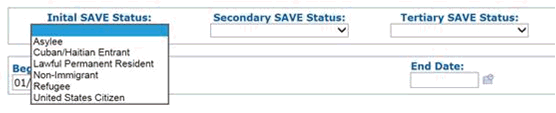
Per Policy they are not considered a Qualified Non-Citizen (QNC) and should not be granted eligibility however KEES provides eligibility for this person, if their Date of Entry is 5 years prior to the month EDBC is being run for. In order to appropriately deny this individual in KEES the Non-Citizenship page should be completed as normal (user should complete all fields using the immigration document provided) however the Initial SAVE Status field should be completed as follows:
Select the value of ‘Non-Immigrant’ from drop-down list. This prevents KEES from authorizing benefits.
Call Center Phone Number: 844-723-5337
Business Support Email: KEES.HelpDesk@ks.gov
Technical Support Email: KEES.Tier1@ks.gov
Training Email: Training@kees.ks.gov
KEES Repository KEES User Manual
The Dispatch was published on the following dates in June 2016:
June schedule for important processing dates:
Buy-In Deletion Report available – June 16th
Spenddown Met to Unmet- June 10th
Discontinuance Batch – Not running at this time
Timely Notice Closure – June 16th
Negative Change – June 17th
Buy-In Deletion Report completed – June 17th
August Come-Up Month Available – June 21st
Review Batch Run – TBD
MMIS Monthly – June 22nd
When rescinding an old application and you receive the error message Error! Cancel - Rescinding this Effective Date will cause 10 pending months and may require running EDBC 10 times. Please contact a supervisor with override rights or click Cancel. If this is a new application click the Reapply button. These incidents should be reported to the KEES Business Support Team email with a Subject line of “Rescind Old App”.
These requests are typically completed within one business day.
This applies to all other rescind issues other than what was listed above. These incidents should be submitted via ServiceNow or emailed to KEES Business Support Team. Workers are expected to do their due diligence before sending the request to the Business Support Team. Please ensure that the person in question CAN be rescinded for the month you are requesting.
You can only rescind an application month -or- the month a person was discontinued in.
You cannot rescind when anyone who was part of the application or the discontinuance is in Pending status.
You cannot rescind prior medical months. Instead, you would rescind the application month and then re-add the prior medical request to put those months back into Pending status.
Another important tip is that workers should ALWAYS confirm that the case they were working was rescinded or reapplied appropriately BEFORE running EDBC. If a reapply was done when the case should have been rescinded, the worker should run the application month taking Negative Action with the reason of ‘Application Opened in Error’. This allows you to appropriately rescind the discontinuance in order to process the review.
Cuban Parolees with specific Class of Admission (COA) codes are considered Cuban/Haitian entrants. They do not have to meet the 5-year bar. In addition, they meet Refugee status and could qualify for Refugee Medical if not otherwise eligible for other Medicaid programs. Additional information about the applicable COA codes, the policy and how to process this in KEES is included in WA448 Cuban Parolees.
WA448 Cuban Parolees (New)
Call Center Phone Number: 844-723-5337
Business Support Email: KEES.HelpDesk@ks.gov
Technical Support Email: KEES.Tier1@ks.gov
Training Email: Training@kees.ks.gov
KEES Repository KEES User Manual
June schedule for important processing dates:
Buy-In Deletion Report available – June 16th
Spenddown Met to Unmet- June 10th
Discontinuance Batch – Not running at this time
Timely Notice Closure – June 16th
Negative Change – June 17th
Buy-In Deletion Report completed – June 17th
August Come-Up Month Available – June 21st
Review Batch Run – TBD
MMIS Monthly – June 22nd
The Delinquent Premiums Processing Batch that was scheduled to run on June 7, 2016 has been delayed. Additional information will be provided as it becomes available.
The Orphaned ID Batch is now running nightly in KEES. This Batch will sweep for any Client IDs that were newly created in KEES that are not known to a case number (frequently these are Duplicate IDs created in error). This means that Duplicate IDs that were accidently created during the registration process, no longer need to be associated to a case before linking the duplicates. Instead, workers should just leave them for the Batch to delete at the end of the day. If you find that a Client ID is a duplicate and is associated to a case, please continue with your current process of reporting.
Call Center Phone Number: 844-723-5337
Business Support Email: KEES.HelpDesk@ks.gov
Technical Support Email: KEES.Tier1@ks.gov
Training Email: Training@kees.ks.gov
KEES Repository KEES User Manual
June schedule for important processing dates:
Buy-In Deletion Report available – June 16th
Spenddown Met to Unmet- June 10th
Discontinuance Batch – Not running at this time
Timely Notice Closure – June 16th
Negative Change – June 17th
Buy-In Deletion Report completed – June 17th
KEES Release – June 19th
August Come-Up Month Available – June 21st
Review Batch Run – TBD
MMIS Monthly – June 22nd
Processing Deadlines Code Card - Fiscal Year 2017 was modified in the User Manual as well as the Repository.
The Form V115- General Notice of Approval will only display the program persons being approved with the application (coverage request) being processed. Already active program persons already receiving coverage should not be included on the Form. When the Form V115- General Notice of Approval is used the following information will display for each person being approved:
Individual’s name
Program
Coverage start date
Client ID number
Example:
Family of 3. Primary Applicant and 2 children. 1 child is already an active program person receiving coverage. The Primary Applicant submits a new application for herself and her other child and they are approved. The Primary Applicant is approved for MAGI Caretaker Medical and the child is approved for MAGI CHIP. The application was received on 08/15/2015 but was completed on 08/29/2015. If a NOA isn’t correctly generated, the Form V115-General Notice of Approval is used to notify the consumer of the determination. The Form will only include the Primary Applicant, their program, their coverage start date (08/01/2015) and their client ID number, along with the child that was approved for CHIP, their program, their coverage start date (08/29/2015), and their Client ID number. It should not include the child already receiving coverage since the application was not for that person.
This change will affect when the K-R100 NOA Fragment is displayed.
‘He or she does not qualify for medical assistance. To qualify for medical assistance you must be one of the following:
A child under age 19
A parent or caretaker of a child
Age 65 or older, Blind or Disabled
Pregnant
This fragment will now display for discontinuances as well as denials. In addition the updates to the NOA fragment rules will prevent the NOA K-R100 fragment from displaying If an applicant has met at least one of the non-financial eligibility criteria needed to be considered for a benefit and is being denied for a different reason.
It is expected that this will improve the usability of system-generated NOAs and will no longer require staff to create their own manual notice due to this fragment being incorrectly used.
This change will add the following two new screens to KEES:
Reasonable Compatibility List
Reasonable Compatibility Test Detail
The screens will display the results of the Reasonable Compatibility Test made for individuals that are triggered by No-Touch, Batch EDBC and through the Request Verification button. Please see the Training Material and updates to the KEES User Manual for more details related to how these screens function and the specific details related to the information that can be viewed.
NOA Fragments
When the CHIP and Premium Billing Changes were implemented through CR305 on May 1, 2016, the following three fragments were not displaying when the case included both Medicaid and CHIP recipients. This change will allow the following NOA Fragments to display as appropriate for all CHIP denials/discontinuances.
‘The premiums are for the months of <variable = months of unpaid premiums> ‘
‘There is a three month penalty for not paying your premiums. Your penalty period is <variable = date range of penalty period>. If you pay the premiums owed, you may be able to shorten the penalty.’
‘You can call 1-866-688-5009 to get information about how to make a payment.’
The NOA Fragment rules will now allow these NOA fragments to display in a Change NOA when an individual is being denied/discontinued for the CHIP Medical Program and there are other active program persons still receiving coverage. The fragments should only display for the individuals that have been discontinued from CHIP coverage or denied CHIP coverage. Users will no longer need to append the NOA with this information for blended programs. The Standard Text for Copy & Paste spreadsheet will be updated to indicate that this template is no longer needed in this situation.
The following two CHIP Premium Tasks will now be searchable in the task name field in the task inventory:
CHIP Medical Program delinquent Premium
Reinstate CHIP coverage-Premium paid
CE Dates for 18 year old PW
This changes determinations for pregnant women so their Continuous Eligibility (CE) dates are appropriately set. The CE date for 18 year old pregnant women will now be set correctly and staff will no longer have to manually update the CE. It will now be set to the longer of the following:
The month of the 19th birthday or
Two months following the end of the pregnancy
This change also updates CHIP determinations for deemed newborns. Rules will now prevent CHIP Deemed Newborns from getting Medicaid as defined by Policy. Per policy, deemed newborns that meet the definition of CHIP deemed newborns should receive CHIP, not Medicaid. Staff will no longer need to create a Customer Options record to prevent CHIP deemed newborns from receiving Medicaid.
Changes to the Standard Cut and Paste for 06/20/16 (Attached)
On Family Medical (can also be used for E&D) Both Reporting Responsibilities and Medical Rights and Responsibilities have been added in template form for use when generating NOAs.
#17 Verification Fragments have been divided into two fragments – one for bank accounts and one for Direct Express card.
#25 Now includes contact information for the KS Commission on Veteran Affairs to help fill out application.
On E&D several forms have been added for use:
DD-1103, Release to Disclose income to KDHE DDS
DD-1104, Disability Determination by KDHE staff
DD-1105, Input of information on a Disability determination by KDHE staff
DD-1106, Medical Onset Date Verification form
Removed because NOAs in KEES are working:
CHIP denial – Past due premiums, CHIP Approval, CHIP Review approval.
General Notice of Approval is also removed, Form V115 is being fixed in CR500 as noted above.
Wording change on description of CHIP Discontinuance for Premium Delinquency.
A new Append template has been added to be used when prior medical months are requested and consumer already had coverage in those months.
WA449: Title 21 Pregnant Woman Changes to Title 19 Pregnant Woman in Month of Birth (new)
Workaround 449 is a short term workaround for handling babies born to pregnant women who switch from PLT/PW to PLN/PW or CTM/PW in the month of the baby’s birth due to a change in income. With the introduction of CR-623 in the 6/19/16 build, babies born to Title 21 moms will now be appropriately determined as Title 21 Deemed Newborns. However, if the mother should switch to Title 19 in the month of the baby’s birth, the baby should then be a Title 19 Deemed Newborn. KEES is not currently recognizing the change in benefits unless the EDBC switching the mother to Title 19 is Accepted/Saved prior to adding the baby to the program. The fix for this issue is tentatively slated for the 7/24/16 build.
Call Center Phone Number: 844-723-5337
Business Support Email: KEES.HelpDesk@ks.gov
Technical Support Email: KEES.Tier1@ks.gov
Training Email: Training@kees.ks.gov
KEES Repository KEES User Manual
Buy-In Deletion Report available – June 16th
Spenddown Met to Unmet- June 10th
Discontinuance Batch – Not running at this time
Timely Notice Closure – June 16th
Negative Change – June 17th
Buy-In Deletion Report completed – June 17th
KEES Release – June 19th
August Come-Up Month Available – June 21st
Review Batch Run – TBD
MMIS Monthly – June 22nd
This is a reminder that workers should not be overriding EDBC unless their case fits one of the documented scenarios provided by the KEES Help Desk as requiring an override. All EDBC results should be carefully reviewed and if the outcome is not what was expected, the worker needs to review all of the data collection pages to ensure that they have been completed accurately.
If after that is done, the worker feels that an incorrect determination is being produced by EDBC, the case should be submitted to the KEES Help Desk. Most of the overrides that we see at the Help Desk were not necessary and all overrides have downstream impacts.
If the EDBC that denied the child for ‘Future CHIP Start Date’ was Accepted and Saved in one month, but the child was not rescinded until the next month, additional steps are necessary.
Example: Application date is 03/15/2016. EDBC is run on 5/30/2016 for the month of 03/2016 and the child is denied for ‘Future CHIP Start Date’. Due to rescinding issues and reporting to Help Desk the worker is unable to complete the rescind process until 6/02/2016.
When the worker goes to rescind the denial, the Rescind Confirmation page will show an effective date of 5/01/2016. This is actually correct. The worker should complete the rescind and run EDBC for 5/2016. The result will once again be a denial for ‘Future CHIP Start Date’. The worker will then need to rescind that denial as well. The Rescind Confirmation page will now show an effective date of 6/01/2016.
We have received reports that the V115 is not populating the correct information. Please discontinue using this form while we research the issue. We will let you know when you can resume using it.
You will not receive different results within the same day. Please only request verifications one time.

Call Center Phone Number: 844-723-5337
Business Support Email: KEES.HelpDesk@ks.gov
Technical Support Email: KEES.Tier1@ks.gov
Training Email: Training@kees.ks.gov
KEES Repository KEES User Manual
The Dispatch was published on the following dates in July 2016:
July schedule for important processing dates:
Buy-In Deletion Report available – July 16th
Spenddown Met to Unmet- July 15th
Discontinuance Batch – Not running at this time
Timely Notice Closure – July 19th
Negative Change – July 20th
Buy-In Deletion Report completed – July 19th
KEES Release – TBD
September Come-Up Month Available – July 22nd
Review Batch Run – July 15th
MMIS Monthly – July 21st
Just as a reminder, when rescinding an old application and you receive the error message Error! Cancel – Rescinding this Effective Date will cause 10 pending months and may require running EDBC 10 times. Please contact a supervisor with override rights or click Cancel. If this is a new application click the Reapply button. These incidents should be reported to the KEES Help Desk email with a Subject line of Rescind Old App. – please do not submit these requests directly through ServiceNow.
When working an add a person or other case maintenance related action and there are active CHIP kids with a premium obligation on the case, running EDBC may result in a discontinuance of the CHIP kids if they have not paid their premiums and become delinquent. This is an appropriate case action. Continuous eligibility does not protect against premium delinquency. Therefore, do not override EDBC as this will cause the case to be active on CHIP while at the same time active in a premium penalty. As stated in the KEES dispatch on 06/23/2016, if the outcome is not what was expected, the worker needs to review all of the data collection pages to ensure that they have been completed accurately. After that is done, if the worker feels that an incorrect determination is being produced by EDBC, the case should be submitted to the KEES Help Desk.
July, 2016 Review Processing
Reviews for coverage expiring July 31, 2016 were mailed 06-27-16. There are some specific items to note regarding cases that were impacted by this process.
KEES requires a Review date for all cases. This is true even for programs that aren’t subject to review – primarily SSI. When medical converted from KAECSES to KEES last year, a default review date of 07-2016 was used for these programs. When the review batch executed this month, these SSI cases were picked up and executed through the batch – cases with both SSI and MSP were impacted. To avoid a negative impact to the beneficiary, several mitigation processes have been put in place. Additional action is planned on at least two of these items. Notification will be provided when the details are available.
No Review Type: The majority of SSI cases were assigned a ‘no review’ type. These appear to be cases without MSP or other coverage. There is no impact on these cases. Although the review was resent, there were no notices sent and no additional action is required by the member.
Super Passive Review Type: There were two issues with Super Passive Reviews.
For those that did not experience a change in coverage (example - SSI and QMB remains SSI and QMB), the review was processed and the member was sent a notice indicating there was no change. A new review date was also assigned to the program. No additional action is required.
For those individuals that experienced a change in coverage (about 4000 statewide) the change is considered an error. It appears to be the result of incomplete information in KEES to set the SSI program.
We are working on a solution to restore the original SSI program for these individuals but until then, a special process has been implemented when work is necessary on one of these cases. Impacted individuals are identified as those with:
A change in coverage from SSI to another aid code (usually MDN or 300) beginning August 1st.
A review reset to 07-2016
A Super Passive review/IR record was generated.
The absences of a notice in Distributed Documents. The notices/forms were suppressed in order to avoid confusion for the member
When processing needs to occur on one of these cases please contact HelpDesk for any special instructions. Notification will be issued when the aid codes are restored.
Pre-Populated Reviews: There are two issues with pre-populated reviews related to the SSI aid codes this month:
Where the SSI program is the only program reviewing on a program block in the month, and the batch identified the case as a pre-populated review, the review date was reset to 10-2016. Notices were not sent to these individuals and a Review/IR record was not established. We are working on a solution to be put in place prior to October. About 2100 cases were impacted.
For other SSI programs that were identified as Pre-Populated, the action was considered an error. This also appears to be the result of incomplete information in KEES to set the SSI program. There were about 600 cases impacted.
We are working on a solution to reset the review date to 10-2016 for these cases as well, but until then, staff can identify the impacted programs by the following:
A review date of 07-2016
A Review/IR record of Pre-Populated Review
The absence of a notice/form in distributed documents. The notices were suppressed in order to prevent confusion for the member.
Additional information will be provided when the fix is complete.
As a reminder to staff when processing a case with an SSI recipient, take a moment to ensure the following are true (especially on converted cases):
Ensure there is an active SSI income type for the individual.
For people under age 65 an active SSI Blind or Disabled Medical Condition Record is also required.
For people age 65 and over, end date the medical condition
Run with a Medical RMT.
KEES identifies newly registered consumers and those that have reapplied in a nightly batch job. That batch job creates a file and sends these consumers to DCF IT to load into the EATSS system. DCF IT then sends those KEES consumers on an interface file to SSA. The response file is received from SSA the next day and that data is loaded into EATSS. Once the data is in EATSS, staff should be able to do a query and see the SSA information.
The file in KEES is created every night. It is sent to DCF IT that same night. DCF IT then sends it to SSA THE NEXT DAY. This adds a day to the timeframe of getting the data loaded into EATSS.
Specific data elements MUST be in KEES or else the record for the consumer won’t be picked up by the batch job and it won’t be sent on the file. If the record isn’t sent on the file, there won’t be any record in EATSS. If the user tries to view the data, an error message will be displayed: “SSN IS INVALID OR YOU DO NOT HAVE PERMISSION TO ACCESS”. The MANDATORY data elements are: First and Last Name, SSN, DOB and Gender. If one or more of these data elements are missing at registration and then later added/corrected in KEES, that updated record will be picked up by the KEES batch job the night the update was made. That record will be on the file sent to DCF IT that same night. The processing time will be the same as outlined above.
Gender is NOT populated in KEES from the MIPPA applications so records from MIPPA applications will NOT be sent upon registration. Only after the Gender of the consumer is entered on the Individual Demographic page will the record be sent on the file. If this application is registered on one date but the Gender isn’t entered onto the page until days/weeks later, staff must wait at least three days AFTER the gender was entered into KEES before the data will be populated in EATSS.
Remember: Policy states that data on the MIPPA applications is considered “verified” so staff don’t have to verify the data again using EATSS. This is true unless there are two consumers on the same MIPPA application. In that case, staff must verify the SSA income of both consumers using EATSS.
If after three days no updates have been made in EATSS, a ServiceNow ticket should be submitted through your Lead or Floorwalker to the KEES Help Desk.
Call Center Phone Number: 844-723-5337
Business Support Email: KEES.HelpDesk@ks.gov
Technical Support Email: KEES.Tier1@ks.gov
Training Email: Training@kees.ks.gov
KEES Repository KEES User Manual
Buy-In Deletion Report available – July 16th
Spenddown Met to Unmet- July 15th
Discontinuance Batch – Not running at this time
Timely Notice Closure – July 19th
Negative Change – July 20th
Buy-In Deletion Report completed – July 19th
KEES Release – July 24th
September Come-Up Month Available – July 22nd
Review Batch Run – July 15th (Tentative)
MMIS Monthly – July 21st
On July 8th the premium discontinuance batch was successfully run in production. This batch discontinued over 3600 beneficiaries who were at least two invoices delinquent on CHIP premiums. Plans are in place to take care of any cases that have fallen out of this process. Policy memo 2016-05-01 discusses the new CHIP premium enforcement policy. Workers should follow the instructions given in the May Policy Changes Training based on this memo when coming across any cases that have been discontinued due to premium delinquency.
LIS Application Registration
When registering LIS applications, both the PDF and the e-App shall be used to ensure the correct dates are used. LIS applications will be registered in KEES based on the following guidelines.
Application Date – The 4/18/2014 date listed as the KDHE/DCF DATE on the PDF version of the LIS application is a defect. The application date shown on the e-App is the date the data file was received by the state from the SSA. This is the MSP application date for eligibility purposes and establishes the 45 day processing timeline.
Start Date – The SSA APP. DATE on the PDF version of the LIS application is the date the individual filed the original LIS application with the SSA. This is considered the date of request for MSP and will be added as a retro month for eligibility purposes.
Coverage under either the LMB or Expanded LMB programs may begin as early as the month of application with SSA. There is no prior medical eligibility when processing LIS applications.
Coverage under the QMB program may still begin no earlier than the month after the month the application is processed.
This week’s reminder is specific to Long Term Care. If you are touching your cases the first time since conversion you must do clean-up on your case first. The following items are from the KEES User Manual.
Be sure to check the LTC Details on each EDBC that is run for Long Term Care cases. Please reference the KEES User Manual. Since the fix went in KEES now creates the “TC” code, if a case hasn’t been touched since conversion, we’re seeing staff just Accepting the EDBC but now it may have TC codes. That’s because the LTC Data Details page may have the “Length of Stay” as “30 days or less” which creates the TC. That needs to be changed to “More than 30 days” and the correct LTC code should then display on the EDBC. If the TC code is present, the Patient Liability may be wrong also as it will be using the Independent Living PIL in the budget. It is ALWAYS best practice to check the “budget” hyperlink to insure ALL the details are correct before Accepting and Saving the EDBC.
The following information lists each LTC Type and the related mandatory fields. Fields in *Bold with asterisks* need user attention after conversion.
Name (converted)
Recorded Date (converted)
LTC Type (converted)
*Agency*
HCBS Waiver Type (converted)
*Date*
*Estimated Monthly Cost of Care*
Effective Date of HCBS Services (converted)
Name (converted)
Recorded Date (converted)
LTC Type (converted)
*Facility/Name Location*
Admission Date (converted)
*Anticipated Length of Stay*
Current Level of Care in Your Facility (converted)
*Cost of Care*
*Care Screening Met*
*Date Screening completed*
Name (converted)
Recorded Date (converted)
LTC Type (converted)
*Agency*
MFP Waiver Type (converted)
*Date*
*Estimated Monthly Cost of Care*
Effective Date of MFP Services (converted)
The first time a PACE case is accessed in KEES for any reason, the following action needs to be taken per the KEES User Manual Post Conversion Cleanup:
Access the LTC Data List page. The converted LTC record does not have a type.
Put an ‘X’ in the box by the person’s name and click the Remove button.
Click the Add button to create the LTC Data Detail page with PACE eligibility information. Use the ES-3166 to complete the details.
After all entries are completed and EDBC is run, the correct PACE aid code displays on the EDBC and Case Summary pages.
Call Center Phone Number: 844-723-5337
Business Support Email: KEES.HelpDesk@ks.gov
Technical Support Email: KEES.Tier1@ks.gov
Training Email: Training@kees.ks.gov
KEES Repository KEES User Manual
July schedule for important processing dates:
Spenddown Met to Unmet- July 15th
Buy-In Deletion Report available – July 16th
Discontinuance Batch – Not running at this time
Timely Notice Closure – July 19th
Buy-In Deletion Report completed – July 19th
Negative Change – July 20th
Review Batch Run – July 20th
MMIS Monthly – July 22nd
September Come-Up Month Available – July 22nd
KEES Release – July 24th
When Reapplying a program or a person, you must first change your Display Date to the month that the reapplication takes place (the application month). If this is not done, then you will be unable to set the Beginning Date of Aid correctly. When the Application Date is set for one month (for example May 2016) and the Beginning Date of Aid is set to another month (for example August 2016), you create “gap months”. For additional assistance on how to Reapply a program or a person, please see the KEES User Manual > Medical File Clearance and Registration > Reapply Program.
Eligibility Staff should verify that the program/people were Reapplied or Rescinded appropriately before running EDBC. Once EDBC has been Accepted/Saved, it becomes increasingly difficult to undo.
If no action has been taken on a case since conversion (July 2015), clean-up will be required before you begin processing. If you are unsure whether a case has been touched since conversion, you can check the EDBC Results screen. If the last EDBC run on the case is a ‘Manual’ EDBC, then the case will likely need clean-up done. You can also check the Journal to see if another worker has logged that they completed post conversion clean-up. For additional assistance on how to perform post conversion clean-up, please see the KEES User Manual > Post Conversion Cleanup.
Not everyone known to KAECSES converted to KEES with an address. Addresses were only converted for the Primary Applicant (Case Head in KAECSES) and Active MEMs.
Every NOA should be reviewed for accuracy.
Due to a system issue, when an address is entered using all four address lines (Name, Address Line 1, Address Line 2, City/State/Zip), the last line gets left off of the Form/NOA. This issue is being worked on and should be fixed soon. However, until this issue is fixed, workers should carefully check all correspondence to see if any part of the address is missing and should avoid using the Address Line 2.
When this issue is discovered, workers should do the following until further notice:
Return to the contact screen and “Edit” the mailing address of the applicable recipient.
Ensure that no information is shown on Line 2. If there is information on Line 2 move this information to Line 1. Save and Return.
See process outlined below if the address information will not fit on one line.
Select the User-Entered Address and add the corresponding county if not already shown. Click Select.
After saving, correspondence(s) can then be recreated by:
If corrected on the same day, delete the original that was generated with the bad address, and then re-run EDBC.
If not corrected on the same day, a new notice must be generated manually, using a V008.
If you are unable to modify the address to fit entirely on Address Line 1, then the following process must be used:
Select “Save and Print Locally”.
Obtain letter from printer
Give the Correspondence to your Supervisor or Lead
If your Form/NOA generates with ‘No Address Found’ in the address section, then your Primary Applicant (or whomever the notice is going to) is missing an address. You will need to delete your NOA, go back and add the missing address, and then re-run your EDBC to regenerate the NOA with the address. This only works when it is all done in the same day that the application was processed.
In order to search on or request a CAN number in EATSS, the CAN number must be listed on the Medicare Expense Detail page in the Medicare Claim Number field. After adding a CAN number to this page, a worker will need to wait three days for the request to be processed.
If you need to search on a CAN number, but the person is not receiving Medicare, you will still need to enter the CAN number on the Medicare Expense Detail page. The page should be filled out in this manner:
Name: Select the appropriate consumer from the drop-down menu.
Medicare Claim Number: Enter the CAN number from Social Security per the Tips below. If this number is not entered correctly, then you will not be able to search on it in EATSS.
Part A Payment Method: Select ‘Free’ from the drop-down menu.
Part A Payment Amount: Enter ‘0’ zero.
Part A Start Date: Enter the first day of the month of application.
Begin Date: Enter the first day of the month of application.
Verified: Select ‘Verified’ in the drop-down menu.
Click the Save and Return button.
Do not enter any numbers after the alpha character when it is an ‘A’ – for example:
Enter 123456789A not 123456789A00
If the alpha character is a ‘D’, ‘C’ or some other letter, drop the zero if the number shows in EATSS as D04, C01, C02, etc. – for example:
Enter 123456789C1 not 123456789C01
More information on this topic will be forthcoming in a future Dispatch.
The following outlines the notable changes in the KEES release scheduled for 7/24/16.
This change will no longer require a medical condition for LTC children. Instructions are being issued through KDHE Policy and will be available prior to Monday, July 25.
A variety of notice fragments that impact all Medical programs have been updated in KEES. A chart has been provided to distinguish which NOA fragment pertains to each program or what has changed about the fragment.
Any NOA that does not correctly produce must be reported to the KEES Help Desk. Include a copy of the NOA, mark what is incorrect on that NOA, and include a comment on what should have appeared. Please CC: Cymiller@kdheks.gov on all NOA problems reported to the KEES Help Desk. Remember to remove any PII from the attachment before submitting the ticket.
Description of NOA Fragment Changes was attached to the Dispatch.
This change updates the interface between KEES and the MMIS to include the full Policy ID field from the Other Health Insurance page in KEES. This will be effective with all updates on or after this change. There is no need for staff to update the screen for change that were previously reported but were not included in the MMIS file. Staff should only update new TPL and changes being reported or processed as of the date of this change.
In addition, when a consumer reports that their other health insurance has ended, not only does the worker need to end date the record in KEES, but they also need to submit a request to have it end dated in the MMIS as this is not an automated process. This is commonly done with the paper notification. Please note, ADAP staff shall continue to follow existing processes until otherwise notified.
This Change Request affects how ‘Denied Applicants’ will be treated by rules in subsequent EDBCs. Currently when a consumer was being denied at their initial EDBC the system was allowing the person to remain in an ‘Applicant’ status. This functionality allowed the EDBC to retest the denied consumer for eligibility each time EDBC was run even without the consumer requesting a determination. This resulted in inaccurate EDBC results, NOAs and Auto Journal entries for these individuals.
Subsequent EDBC will no longer include a determination for ‘Denied Applicants’ after their initial denial, unless they have been specifically re-applied for or their initial denial rescinded. This will result in accurate EDBCs.
NOTE: For cases that were transferred to State prior to CR 580 implementation and are being processed by State staff after implementation, the following may need to be completed. State Staff may have to complete the- re-apply process for some individuals in order to complete their coverage request.
Denial NOA fragments will no longer appear for these ‘Denied Applicants’ in subsequent NOAs after their initial EDBC, unless they have been specifically re-applied for or their initial denial rescinded. This will increase NOA accuracy.
Auto Denial Journal Entries will no longer be generated for these ‘Denied Applicants’ for subsequent EDBCs, unless they have been specifically re-applied for or their initial denial rescinded. This will increase Journal accuracy.
Call Center Phone Number: 844-723-5337
Business Support Email: KEES.HelpDesk@ks.gov
Technical Support Email: KEES.Tier1@ks.gov
Training Email: Training@kees.ks.gov
KEES Repository KEES User Manual
CHIP Premium Discontinuance Batch – August 5th
Spenddown Met to Unmet- August 12th
Buy-In Deletion Report available – August 16th
Reviews Discontinuance Batch – Not running at this time
Timely Notice Closure – August 18th
Buy-In Deletion Report completed – August 18th
Negative Change – August 18th
Review Batch Run – August 15th
MMIS Monthly – August 23rd
October Come-Up Month Available – August 22nd
KEES Release – August 28th
We are currently investigating a potential issue with the Daily EATSS file.
We do believe that people are being picked up by the Weekly EATSS file which runs on Friday nights. You may need to allow up to 10 business days from the time the application is registered to search on a person in EATSS.
In order for a person to be picked up by the Weekly file, all of these conditions need to be true:
The program block has a status of either Pending or Active
The person has a First Name, Last Name, DOB, SSN, and Gender entered in KEES
The person cannot be deceased
The person cannot be coded as Permanently Out of the Home
If you have confirmed that your case has met all of the requirements –AND- it has been at least 10 business days since the case was registered and you still are not able to access EATSS, please report the case to the KEES Help Desk.
If the TPQY date is not current, then a manual update can be requested by hitting the F4 function button. If the update is requested prior to 3pm, then updated information should be available the next business day. If the update is requested after 3pm, then you will need to allow 1 additional business day for updated information.
If you do not receive an updated TPQY, the issue should be reported to the DCF Help Desk.
We are also investigating a potential issue with persons listed as Pending UP not being picked up.
As a temporary workaround, if you need to process one of these cases, you can send the case to the KEES Business Support Team and we can flip the Pending UP persons to Pending MEM. This may help them get picked up by the file. When you are ready to begin work on one of these cases, please send an email to with a Subject line of “Pending UP”.
A data fix is planned for later this week or weekend to clean-up all of the ‘KDOL Interface Wages’ tasks from KEES. No action is needed on the workers part regarding these tasks.
Call Center Phone Number: 844-723-5337
Business Support Email: KEES.HelpDesk@ks.gov
Technical Support Email: KEES.Tier1@ks.gov
Training Email: Training@kees.ks.gov
KEES Repository KEES User Manual
The Dispatch was published on the following dates in August 2016:
CHIP Premium Discontinuance Batch – August 5th
Spenddown Met to Unmet- August 12th
Buy-In Deletion Report available – August 16th
Reviews Discontinuance Batch – Not running at this time
Timely Notice Closure – August 18th
Buy-In Deletion Report completed – August 18th
Negative Change – August 18th
Review Batch Run – August 15th
MMIS Monthly – August 23rd
October Come-Up Month Available – August 22nd
KEES Release – August 28th
The KDOL Monthly Income Amount that is displayed on the Reasonable Compatibility Test Detail page is pulled from either:
The most current quarter if available (currently that is 3rd Qtr 2016).
The previous quarter if the most current quarter in not available (currently that is 2nd Qtr 2016).
KEES will not go back any further than this to look for income on KDOL. This means, for this example, that 1st Qtr 2016 wages would not be used for a determination of reasonable compatibility.
The Subsystems Macro that is used by the KanCare Clearinghouse has been updated and will utilize the same quarters as KEES. When the Manual RC Tool is used, it shall also be completed with the same quarters used by KEES. The Instructions tab of the Manual RC Tool has been updated. The new tool is attached and will be updated on the KEES Repository. The KDHE Policy Team will issue a separate directive regarding changes to the RC policy.
Reminder: The Reasonable Compatibility test is applicable to all MAGI programs in addition to Medically Needy, MediKan and MSP programs.
Process/Policy Change: If KEES checks Reasonable Compatibility and returns a result of NO, then staff shall move onto Tier 3 for income verification. The Manual RC Tool/RC Macro should only be used when KEES will not perform the RC test, such as when a BPM error occurs. Incidents should continue to be submitted when BPM errors occur even when the RC test is later completed successfully.
NOTE: You will not receive different results in the KEES RC Test within the same day. Please only request verifications one time.
Users that have been upgraded to IE11 are reporting that they are unable to change their passwords using OIM. When this occurs the following steps should be taken to complete the change password process.
Open Internet Explorer, then hit “Alt” button on your keyboard. This will display the Tool Bar in Internet Explorer. On the Tools Menu, click “Compatibility View settings”.
Open Internet Explorer, then hit “Alt” button on your keyboard. This will display the Tool Bar in Internet Explorer. On the Tools Menu, click “Compatibility View settings”.
The Compatibility View settings window will open.
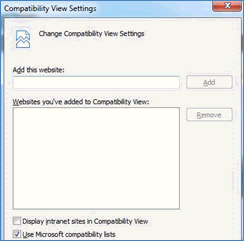
In the “Add this website:” field, please enter “ks.internal” – without the quotation marks, then click Add button.
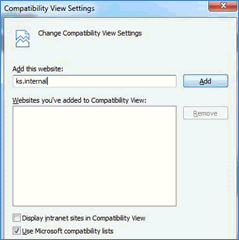
This should be the result after you click the Add button.
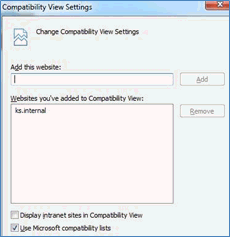
You can now Close the “Compatibility View Settings” window and try accessing OIM. A pop message like this will display every time you navigate in OIM, this is fine, just click OK.
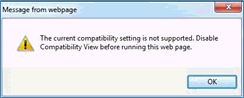
Cases should only be Discontinued in the Come-Up Month. If the MMIS Monthly File has run, the coverage is in MMIS and the case cannot be closed until the following month. For example, August 2016 eligibility has been sent to MMIS. You can now only discontinue coverage by running 09/2016 EDBC to end benefits 08/31/2016.
Unless the user is selecting a Timely Notice Exception of Yes and a Reason value—KEES will not allow the user to Discontinue or give worse coverage in a Paid Month. The EDBC will be a Read Only. A Read Only EDBC is just that—it is for view only. It is used to determine if an overpayment has been made.
If the user does use the Timely Notice Exception and discontinue a month already sent to MMIS, KEES will give a
Program/Person Status of Ineligible. We do not remove coverage from MMIS.
The exception to this is when a user is closing an LTC case where there is no other coverage being approved. Running Paid Months is required to send the IL/NA to MMIS. This will not end medical eligibility.
Person is ‘Ineligible’ on EDBC
An ‘Ineligible’ status DOES NOT mean that the consumer is just not eligible for benefits. Rather it means that the consumer has already been granted benefits for that month and coverage cannot be eliminated. When EDBC is run in a paid month using the timely notice exception, and an active member is being discontinued this will result in negative change. That active member will become ‘Ineligible’.
Never Accept and Save an EDBC that shows any person as ‘Ineligible’. Instead, back out of the EDBC and reassess what month you are attempting to run EDBC in. You should not be ‘Denying’ benefits in a month that has already been paid.
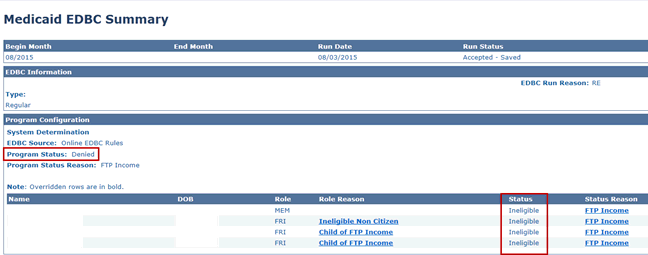
If you happen to have a case with a person who has an ‘Ineligible’ status that has not already been sent to the KEES Help Desk, you will need to send it.
Call Center Phone Number: 844-723-5337
Business Support Email: KEES.HelpDesk@ks.gov
Technical Support Email: KEES.Tier1@ks.gov
Training Email: Training@kees.ks.gov
KEES Repository KEES User Manual
August schedule for important processing dates:
CHIP Premium Discontinuance Batch – Not run for August
Spenddown Met to Unmet- August 12th
Buy-In Deletion Report available – August 16th
Reviews Discontinuance Batch – Not running at this time
Timely Notice Closure – August 18th
Buy-In Deletion Report completed – August 18th
Negative Change – August 18th
Review Batch Run – TBD
MMIS Monthly – August 23rd
October Come-Up Month Available – August 22nd
KEES Release – August 28th
Currently within the registration flow the user is able to add or edit an address. On the address detail screen there is a begin date and end date. These date fields were added to the system in error and will be removed at Phase 3 go live. Currently, KDHE training material says not to use these fields or this page during registration. This is more of an FYI that if anyone notices these fields exist that they will be removed at Phase 3 go live.
The CHIP Delinquent Premium Discontinuance Batch is not being run for the month of August. Individual cases have been updated to show they are Delinquent, therefore if other case action occurs, it would be appropriate to discontinue CHIP individuals who are delinquent on their premiums. If KEES does not produce an appropriate notice, the Standard Copy/Paste spreadsheet includes a template titled ‘CHIP Discontinuance for Premium Delinquency’.
Changes to the ‘Standard Text for Copy and Paste’ spreadsheet for 08/19/16
The following changes have been made to the Standard Text for Copy and Paste’ spreadsheet:
Two documents have been added to send with forms on Elderly and Disabled Tab. Both have to do with Understated Liabilities. The first, Understated Liabilities informs the consumer that their LTC liability will be changing. The second, Voluntary Payment of Understated Liabilities, for use when consumer has requested to make a payment on their patient liability.
Two snippets have been added to the E&D Resource Fragments tab. The first one is to be used when an M-2 Spousal Impoverishment letter is sent to the consumer. Second is for use with the M3 Intent to Allocate Income.
The data fix to clean-up all of the ‘KDOL Interface Wages’ task from KEES has been completed. If you should happen to find one that has not been ‘Rejected’, please report it to the KEES Help Desk.
Call Center Phone Number: 844-723-5337
Business Support Email: KEES.HelpDesk@ks.gov
Technical Support Email: KEES.Tier1@ks.gov
Training Email: Training@kees.ks.gov
KEES Repository KEES User Manual
August schedule for important processing dates:
CHIP Premium Discontinuance Batch – Not run for August
Spenddown Met to Unmet- August 12th
Buy-In Deletion Report available – August 16th
Reviews Discontinuance Batch – Not running at this time
Timely Notice Closure – August 18th
Buy-In Deletion Report completed – August 18th
Negative Change – August 18th
Review Batch Run –August 19th
MMIS Monthly – August 23rd
October Come-Up Month Available – August 22nd
KEES Release – August 28th
The following outlines the notable changes in the KEES release scheduled for 8/28/16.
This Change Request added a new field labeled the ‘Employer/Business Name’ field to the Income List page.
What Staff can expect-
The ‘Employer/Business Name’ field will display the business name (if self-employment) or employer name (if earnings) that is captured in the ‘Name of Business’ field on the Income Detail page for earnings and self-employment income records. This will allow staff to readily identify which income records are tied to specific employers.
This Change Request enhances the data acceptance functionality to allow staff the ability to accept or reject an address record that applies to multiple household members at the same time. It also allows staff the ability reject “New” data acceptance records that contain blank mandatory fields without requiring staff to enter “fake” data into the mandatory fields to complete the “reject” action and remove the record from the list page. This change has been implemented for each data collection page that is currently importing data from e-apps generated from SSP, FFM, LIS and Worker Portal.
What Staff can expect-
During the data acceptance of new/changed address records, staff will have the opportunity to add other case people to the record. This will allow staff to accept one data record for multiple people on the case without having to click into every “New” record displayed on Contact Summary page. This will be accomplished via the “Address Applies to Additional People:” and “Additional Address Type(s):” fields that were added with CR-610. Please see below for what the screen looks like for editing and data acceptance of an address:
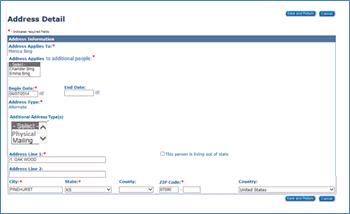
The “Address Applies to Additional People:” drop-down will populate with the names of all of the people on the case except the name of the person the record belongs to (“Address Applies To:” field). If there are no other people on the case then the drop-down will remain blank.
New multi-select drop-down titled “Additional Address Type(s):” that will populate with the standard address types, excluding the address type the record is for.
Staff can use the new multi-select drop-downs to select the people that the address applies to and associate them to the new address record and select any additional address types that may be needed. If any additional people and/or address types are associated to the record via the drop-downs then a new address record will be created for each of those people in addition to the person for which the record was originally created. All records will be effective dated. When the address record is accepted all other new/changed address records awaiting review and data acceptance for that person and address type will be removed. They will no longer appear on the Contact Summary page.
If staff need to reject the new address record for multiple people they can also associate the record to all the people the address needs to be rejected for using the “Address Applies to Additional People:” drop-down and then clicking the “Reject All” button. This will reject the record for all individuals.
Like always, when viewing a list page containing new data, an identifier will appear to the left of the data and also to the right of the page name in Task navigation indicating there is new/changed data to be reviewed and accepted. Selecting the Edit button next to the record with the “New” indicator, will navigate the user to the corresponding detail page.
The detail page will display both the original data when applicable, with the new data listed below the original data.
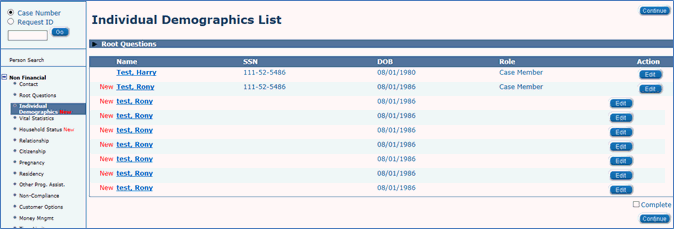
Per CR-610 when completing Data acceptance staff will now have 3 options:
“Check All”
“Accept”
New with CR-610 “Reject All”
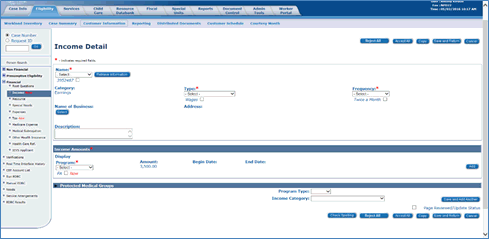
Note: Staff should choose which data acceptance functionality to use only after reviewing the new data and determining what data is needed or not needed.
After reviewing the new data if staff determine that it is valid they have the option of clicking the “Check All” button, which will add a checkmark to all identified new data items on the screen. Staff can then click the “Accept” button to save the record with the new data.
After reviewing the new data staff also have the option to accept and/or reject some of the new data. By checking some of the check boxes and leaving others unchecked staff can identify the data they would like to accept and reject. When staff click the “Accept” button the system does not save the new data that was left unchecked.
With CR- 610 after reviewing the new data staff will now have the option to reject all of the new data displaying on the detail page. By clicking the “Reject All” button, which has been added to all the data collection pages where data acceptance occurs, staff will have the ability to reject all the new data.
When staff select the “Reject All” button, a confirmation pop-up window will be displayed on the screen. The confirmation pop-up window will display the data items that will be rejected along with the following static text:
‘The following data items have been rejected. Clicking continue will confirm the rejection. Do you want to continue?’
The data items that display will be based on the fields that exist in the given detail page. See screenshot of how the confirmation pop-up window would appear for the Address Detail page when the “Reject All” button is selected and the ‘County:’ and ‘Zip Code:’ check boxes are unchecked.
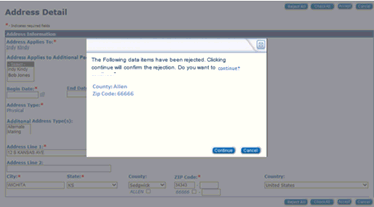
If staff want to continue with the “Reject All” action they would click the “Continue” button. On clicking the “Continue” button from the confirmation pop-up window, the entirety of the new data items will be rejected, the ‘New’ indicator will not display on the list page, and no record will be saved, the system will not require mandatory fields to be populated, page validations will not occur because there will be no record to validate or save.
Following the “Reject All” button action, the continue button will navigate user to the
Contact Summary (for address data acceptance flow)
or
The appropriate data collection list page (for all other data acceptance flows).
If staff do not want to continue with the “Reject All” action they would click the “Cancel” button. The “Cancel” button will close the confirmation pop-up window, returning staff to the detail page.
Note: If staff clicks “Cancel” on the confirmation pop-up window after choosing “Reject All”, the system will navigate staff to the detail page and any mandatory fields will still be required unless staff clicks “Cancel” or “Reject All” from the detail page to complete the data acceptance process for that record.
For the following three data collection detail pages:
Income Detail
Expense Detail
Employment Detail
The “Reject All” button will only appear on the primary detail page and will not display on the secondary detail page. For example: Staff should only expect to see the “Reject All” button on the Income Detail (primary detail) page, when they navigate to the Income Amount Detail (secondary detail) page the “Reject All” button will not be visible. If staff need to reject the entirety of the “New” income record it should be done from the Income Detail page by clicking on the “Reject All” button.
When you are on the primary detail page of Employment Detail, Income Detail or Expense Detail, and you accept any or all data on that primary page and then navigate to a secondary page such as Income Amount Detail and then navigate back to the primary detail page and select ‘Reject All’, the fields originally selected on the primary detail page will not be reflected in the confirmation pop-up window.

Click Edit next to the ‘New’ income record
Check the appropriate required fields
Click the Add button in Income Amounts section
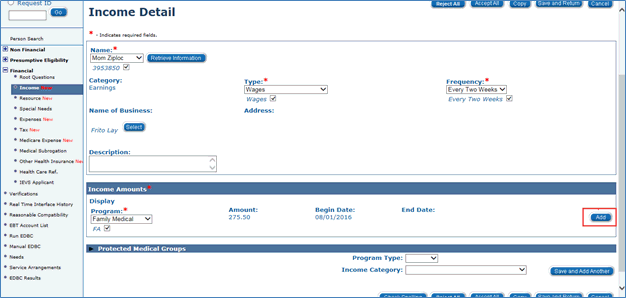
Income Amount Detail page displays
Click the Check All button
Click the Save and Return button
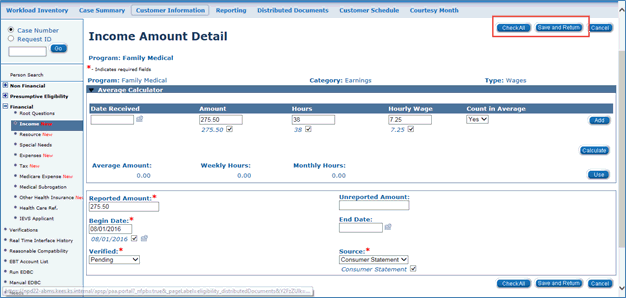
The Income Detail page re-displays. Click the Reject All button to reject the entire income record.
The confirmation pop-up window displays – note that the only information displayed in the window is the name of the business. This was the only data that had no checkmark; however all of the data will be rejected for the ‘New’ income record.
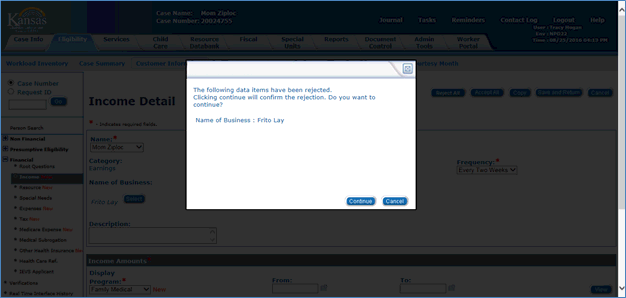
This CR made necessary changes related to Premium Billing following the implementation in May of CR305. Many of the changes in this CR will be transparent to staff as they are related to the files that are sent between Accenture and HPE.
However the following situations are applicable to staff:
From the Dispatch on 5/12/2016: KEES is not always setting correct Penalty Period start and end dates. If denying an application for Premium Delinquency, the penalty begins in the month you are processing.
This has been corrected and the penalty periods will now be established correctly. If staff find a penalty created incorrectly, report an incident.
From the Dispatch on 5/20/2016: There are some instances that have been identified where KEES Rules will establish CHIP Penalty Periods incorrectly. Workers need to check the Medical Program Detail page after running EDBC on all cases that have a CHIP premium delinquency to verify that a penalty wasn’t established either in error, or for the incorrect months.
This has been corrected and the penalty periods will now be established correctly. If staff find a penalty created incorrectly, report an incident.
The Premium Bill Start Date field has been updated to MM/YYYY format. This field was previously allowing staff to choose a date other than the first of the month.
Call Center Phone Number: 844-723-5337
Business Support Email: KEES.HelpDesk@ks.gov
Technical Support Email: KEES.Tier1@ks.gov
Training Email: Training@kees.ks.gov
KEES Repository KEES User Manual
The Dispatch was published on the following dates in September 2016:
September schedule for important processing dates:
CHIP Premium Discontinuance Batch – September 8th
Spenddown Met to Unmet- September 9th
Buy-In Deletion Report available – September 16th
Reviews Discontinuance Batch – September 1st
Timely Notice Closure – September 16th
Buy-In Deletion Report completed – September 19th
Negative Change – September 19th
Review Batch Run –September 15th
MMIS Monthly – September 22nd
November Come-Up Month Available – September 21st
KEES Release – October 2nd
The Review Discontinuance Batch – the automated process to discontinue coverage for persons who have failed to comply with the review process - has been reinstated. The process was temporarily suspended following the batch that executed in January, 2016. The batch is scheduled to execute this weekend. Cases with a review due in 11-2015 will be impacted with this process.
The batch is scheduled to run this weekend and will discontinue cases that received a pre-populated review form but failed to return the review. Coverage will be discontinued effective 09-30-2016. Approximately 1100 cases will be impacted. Note that the discontinuance notice will be held pending final review and are scheduled to be released following COB Tuesday, September 7.
The automated batch will only impact Family Medical cases. Elderly and Disabled programs will not be discontinued with this instance of the batch. However, they may be included in future months.
In addition to the automated batch, 5 types of cases require some form of manual action in order to complete the discontinuance. Most of the situations outlined below completely exclude the case from the Discontinuance Batch. Other situations will be discontinued by the batch but still require some manual action to complete the process. Manual action is required on cases meeting one or more of the following criteria.
The case appears to have been processed but the Review/IR record has not been fully updated, or, an application has been received on the case that may be used to complete the review.
One or more members on the case have a CE date that extends beyond the current month
Members were active under an elderly or disabled program. Because forms were not being sent to the Administrative Roles on all cases, these programs must be evaluated to determine if a discontinuance action can be taken. Manual notification to the PACE entity, Nursing Facility or MCO for HCBS cases must also be taken.
The Case includes a child with a CHIP aid code. A problem with the notice that is produced for CHIP children has been discovered. These cases WILL be discontinued by the batch, but manual action is required to generate a proper notice.
An SSI recipient was targeted for closure. Because an SSI recipient is not subject to review, these individuals will not be automatically discontinued. However, the case must be updated to ensure the member is eligible for ongoing coverage.
Error reports have been produced for each of the above situations and are being processed by KDHE Central office and the KEES Help Desk for this instance of the batch. Plans are underway to continue executing the Review Discontinuance batch until the process is current. Specific dates for future instances of this Batch Run will be announced when they are determined.
Materials to support the Family Medical Spenddown process have been updated.
The Family Medical Spenddown Worksheet, form KC7105, has been updated. It is attached and will also be added to the KEES Repository. The Family Medical Spenddown worksheet, is used to determine the estimated and actual spenddown amounts and must be imaged to the case.
Call Center Phone Number: 844-723-5337
Business Support Email: KEES.HelpDesk@ks.gov
Technical Support Email: KEES.Tier1@ks.gov
Training Email: Training@kees.ks.gov
KEES Repository KEES User Manual
September schedule for important processing dates:
CHIP Premium Discontinuance Batch – September 8th
Spenddown Met to Unmet- September 9th
Buy-In Deletion Report available – September 16th
Reviews Discontinuance Batch – September 2nd, notices were mailed on September 7th
Timely Notice Closure – September 16th
Buy-In Deletion Report completed – September 19th
Negative Change – September 19th
Review Batch Run –September 15th
MMIS Monthly – September 22nd
November Come-Up Month Available – September 21st
KEES Release – October 2nd
Business Technology Career Opportunities, Inc. (BTCO) began Imaging DCF medical files Once imaged, all material contained in the paper case files will be available through Image Now. These files will start to appear in ImageNow, effective 9/12/2016. The project will run for 18 months and DCF offices will be scanned in the order below. If information from a paper file is needed and the case had not been imaged, the file can be requested through DCF as indicated KDHE Policy Memo 2015-12-01. The files will contain Elderly and Disabled Medical information. The files will appear under three document types:
This Document Type will contain the case logs and similar documents.
This Document Type will contain documents pertaining to a disability determination conducted by DDS.
This Document Type will contain all of the other documents in the paper file.
Wichita
Kansas City Area
Topeka
Eastern Kansas
Western Kansas
The CHIP Premium Discontinuance Batch was run on the evening of 9/8/16. This batch discontinued cases that became delinquent on 9/1/2016. Notices are expected to be mailed on Monday, 9/12/16.
Cases that went delinquent in the months of July and August have not been discontinued by the batch and are expected to be picked up in a future month. However, if staff are processing another action on a case with delinquent premiums, it is appropriate to discontinue these individuals.
Call Center Phone Number: 844-723-5337
Business Support Email: KEES.HelpDesk@ks.gov
Technical Support Email: KEES.Tier1@ks.gov
Training Email: Training@kees.ks.gov
KEES Repository KEES User Manual
CHIP Premium Discontinuance Batch – September 8th
Spenddown Met to Unmet- September 9th
Buy-In Deletion Report available – September 16th
Reviews Discontinuance Batch – September 2nd, notices were mailed on September 7th
Timely Notice Closure – September 16th
Buy-In Deletion Report completed – September 19th
Negative Change – September 19th
Review Batch Run –September 15th
MMIS Monthly – September 22nd
November Come-Up Month Available – September 21st
KEES Release – October 2nd
There are currently two issues occurring with premium penalty periods:
The most current penalty status should display on the Medical Program Detail. For example – the Negated penalty should display as it is the most current.

Sometimes this does not happen and the Active penalty will still show on the Medical Program Detail. Because we need to preserve the integrity of our data, please DO NOT edit the Active penalty and change the status to Negated. Until this issue is resolved, you will need to click the View Penalty History button to verify what the current penalty status is.
‘Reinstate CHIP coverage-Premium Paid’ tasks
We are currently investigating a potential issue with the Premium Billing file we receive from HPE. Until we are able to sort out the issue, please do not process these tasks.
If you are processing another task on a case that has a ‘Reinstate CHIP Coverage – Premium Paid’ task, if the result of the determination will result in a CHIP approval, you’ll need to check the Premium Billing system to determine if the premiums HAVE been paid and the case is correctly in a Negated Status.
If there IS a balance on Premium Billing – then this case may have went to Negated status in error. Put your task on hold, and send an email to your Supervisor to request guidance from the Policy Team.
At this time, you will only be able to search EATSS for persons who are either Pending or Active on the program block. Any case persons who are not Pending or Active on the program block, will result in a response of “SSN is invalid or you do not have permission to access”.
The issue with the file has been identified and we are working to get it resolved. The KDHE Policy Team should be providing additional direction on how to handle these cases.
EATSS issues which fall into this scenario no longer need to be reported to the KEES Help Desk.
WA449: Adding Two SOBRA Records on the OPA Page For the Same Month (new)
Call Center Phone Number: 844-723-5337
Business Support Email: KEES.HelpDesk@ks.gov
Technical Support Email: KEES.Tier1@ks.gov
Training Email: Training@kees.ks.gov
KEES Repository KEES User Manual
CHIP Premium Discontinuance Batch – September 8th
Spenddown Met to Unmet- September 9th
Buy-In Deletion Report available – September 16th
Reviews Discontinuance Batch – September 2nd, notices were mailed on September 7th
Timely Notice Closure – September 16th
Buy-In Deletion Report completed – September 19th
Negative Change – September 19th
Review Batch Run –September 15th
MMIS Monthly – September 22nd
November Come-Up Month Available – September 21st
KEES Release – October 2nd
We have been made aware of an issue related to the percentage calculated by the Manual RC Tool. This issue is being fixed soon and will be sent to staff as well as updated on the KEES Repository at that time. As a reminder Reasonable Compatibility should always be run in KEES first. If KEES checks Reasonable Compatibility and returns a result staff are to trust this result and update the income detail accordingly or move onto Tier 3 for income verification if needed. The Manual RC Tool/RC Macro should only be used when KEES will not perform the RC test, such as when a BPM error occurs. Incidents should continue to be submitted when BPM errors occur even when the RC test is later completed successfully.
Call Center Phone Number: 844-723-5337
Business Support Email: KEES.HelpDesk@ks.gov
Technical Support Email: KEES.Tier1@ks.gov
Training Email: Training@kees.ks.gov
KEES Repository KEES User Manual
October schedule for important processing dates:
Reviews Discontinuance Batch – September 28th for Dec. 2015 Reviews
KEES Release – October 2nd & October 30th
CHIP Premium Discontinuance Batch – October 7th
Spenddown Met to Unmet- October 14th
Buy-In Deletion Report available – October 17th
Review Batch Run –October 17th
Timely Notice Closure – October 19th
Buy-In Deletion Report completed – October 19th
Negative Change – October 20th
MMIS Monthly – October 21st
December Come-Up Month Available – October 22nd
When processing a request for coverage, and EDBC is resulting in a CHIP denial due to past due premiums; unless you have been directed to do an EDBC override by the KEES Help Desk Team, an EDBC override would never be appropriate. If you believe that KEES is denying a child in error, please submit a ticket to the KEES Business Support Help Desk.
If users experience cases that are not building a budget, look at the resources. Click the View button on the Resource List page to make sure all resources display. Then check each record. If you find a record that has the same consumer listed twice on any resource, you must remove one of them.
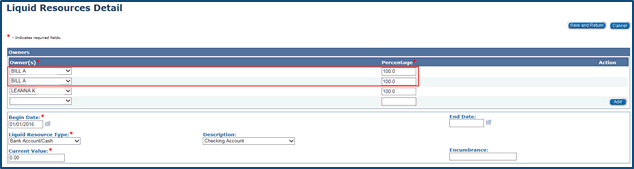
Staff must choose the Family Medical program type on the Income Detail page in order to get a Reasonable Compatibility determination on the Reasonable Compatibility Test Detail page. The Elderly & Disabled program type will not populate the KEES Total Monthly Income Amount field, it will show $0. Elderly and Disabled eligibility determinations can still be made with a Family Medical Program type.
The Review Discontinuance Batch ran the evening of September 28th. Cases with a review due in 12-2015 were impacted.
The batch has discontinued cases that received a pre-populated review form but failed to return the review. Coverage has been discontinued effective 10-31-2016. Approximately 2300 cases were impacted. The notices were released September 29th.
The automated batch only impacts Family Medical cases. Elderly and Disabled programs will not be discontinued with this instance of the batch. However, they may be included in future months.
In addition to the automated batch, 5 types of cases require some form of manual action in order to complete the discontinuance.
The case appears to have been processed but the Review/IR record has not been fully updated, or, an application has been received on the case that may be used to complete the review.
One or more members on the case have a CE date that extends beyond the current month.
Members were active under an elderly or disabled program. Because forms were not being sent to the Administrative Roles on all cases, these programs must be evaluated to determine if a discontinuance action can be taken. Manual notification to the PACE entity, Nursing Facility or MCO for HCBS cases must also be taken.
The case includes a child with a CHIP aid code. A problem with the notice that is produced for CHIP children has been discovered. These cases WILL be discontinued by the batch, but manual action is required to generate a proper notice.
An SSI recipient was targeted for closure. Because an SSI recipient is not subject to review, these individuals will not be automatically discontinued. However, the case must be updated to ensure the member is eligible for ongoing coverage.
Error reports have been produced for each of the above situations. Manual processing of these cases is required.
Specific dates for future instances of this Batch Run will be announced when they are determined.
A master list has been created to identify the correct institutional providers to be used on the LTC Data Detail page in KEES. This will ensure workers select the correct provider when adding or updating the provider information on the LTC Data Detail page.
The attached Nursing Home Active List must be used when selecting the nursing home facility on the LTC Data Detail page. If a nursing home provider/facility is not found on the list please complete the RDB form and email the KS – RDB Medical Rep and Facilitator mailbox.
Once the request is received, the nursing home facility will be researched and if deemed necessary added to the list. The Nursing Home Active List can be found on the KEES Repository in the Other Helpful Information section.
The Nursing Home Active List does not include the administrator of the nursing home. Further instructions to add a facilitator will come at a later time.
This list is only to be used when adding a nursing home on the LTC Data Detail page.
WA450: PACE or MFP for Protected Medical Groups (new)
WA387: Reinstating Medicare Savings Program Coverage When a Person Had Been Discontinued Due to Being Deceased in Error (Retired)
WA388: Sending Referrals to the Medical Subrogation Unit (Retired)
WA389: Task Status Not Updated by Contact Log (Retired)
WA390: SSP PW Application Not Holding Priority (Retired)
WA393: Incorrect Information on ImageNow Capture Screen (Retired)
WA394: Locating Medical Subrogation Tasks (Retired)
WA398: Tasks Created on Discontinued Companion Cases (Retired)
WA402: Form V075 Cannot Save & Print Locally (Retired)
WA408: Medical EDBC List (Manual) Page Not Displaying Data for Presumptive Eligibility (Retired)
WA409: Auto Worker Assignment Fails (Retired)
WA410: Adult Presumptive Eligibility (Retired)
WA414: Approved PE-Adult Tools Mapping in as Denied Manual EDBC’s (Retired)
WA416: Extra Person Record on Override EDBC (Retired)
WA423: How to Release or Reassign a Task When the Task is Assigned to You (Retired – these instructions will be moved to the KEES User Manual)
WA427: Worker Portal Apps With Married Filing Jointly Tax Record (Retired)
WA428: Error When Claiming a Task (Retired)
WA437: CE Dates Incorrectly Updating (Retired – this information will be moved to the KEES User Manual)
WA439: Worker ID Assignment Overlaying Previous Assignment (Retired)
WA443: Worker Portal Required Date Field Formatting (Retired – this information will be moved to the KEES User Manual)
Call Center Phone Number: 844-723-5337
Business Support Email: KEES.HelpDesk@ks.gov
Technical Support Email: KEES.Tier1@ks.gov
Training Email: Training@kees.ks.gov
KEES Repository KEES User Manual
The Dispatch was published on the following dates in October 2016:
The following outlines the notable changes in the KEES release delivered on 10/02/16.
KEES has been modified so that when adding a new SSN or modifying an existing SSN, if that SSN is already known to KEES, it will not allow the entry.
This will impact both Registration and data entry on the Individual Demographics page.
If the SSN is found in the database, then a validation will be returned; “Error! Social Security Number XXX-XX-XXXX already exists in KEES”. This message displays when the user clicks the Save and Return button and the SSN that has been entered is already known to the system. This is a hard stop.
For consumers who have an SSN known to the system, the application will fall out of the No Touch process and an Intake task will be created for the worker to manually file clear and register the application.
If a user receives this message while registering a new person during the registration process on the Registration Person Detail page, the user must either update the SSN to the correct number if it is known, or back out of the registration process. If the correct SSN is not known then the worker needs to complete another, more thorough person search to see if the consumer is already known to the system.
This validation will also occur on the Individual Demographics page. If a worker attempts to data accept an SSN that is already known to the system, or attempts to update an SSN and the new SSN is already known, the validation will appear upon clicking Save and Return. Users should always make sure that the data is valid before accepting it.
If the SSN is found on a different person, research must be done to determine who correctly owns the SSN. It may be necessary to remove the SSN and re-enter it on a different individual in order to attempt verification through the Federal HUB. If it is determined that the SSN on the existing person was entered in error, or is being used by this person as an alias, the SSN must be removed so that it can be entered for the correct individual. When removing the SSN from the incorrect person, a Case Flag is to be added and a Journal Entry created to document the SSN that existed previously for the individual and was removed. The SSN shall NOT be added as an alias.
This change request established new Aid Code codes for consumers with income exceeding the 300% of SSI income limit and are receiving LTC services. Please see the KDHE-DHCF Policy Memo 2016-10-01.
This change request updated the below tasks to correct some design and build gaps discovered with ERO implementation.
The changes made are documented in the Table below which lists the tasks that are impacted with this change request.
| Task Name | Initiated By | Change Description |
|---|---|---|
| Pre-Release Application | KDHE Imaging Workflow - Non-Med Review and Specialty App | Task will be generated in the 'Registration' Queue. |
| Process Pre-Release Application | KDHE Imaging Workflow - Non-Med Review and Specialty App | This task will be generated in the 'State' queue. |
| Return - Manual | Worker | Task has been added to the ‘E&D Eligibility’ and ‘LTC E&D’ Queues. |
| Partial - Manual | Worker | Task has been added to the ‘E&D Eligibility’ and ‘LTC E&D’ Queues. |
| State - Manual | Worker | Task has been added to the ‘E&D State’ and ‘LTC State’ Queues. |
| Partial Approval | KDHE Application Workflow | Task has been added to the ‘Eligibility’ Queue. |
| Partial Record | KDHE Application Workflow | Task has been added to the ‘Eligibility’ Queue. |
| INF Not Called | KDHE Application Workflow | Task has been added to the ‘Eligibility’ Queue. |
| Out of the Home | KDHE Application Workflow | Task has been added to the ‘E&D Eligibility’ and ‘LTC Eligibility’ Queues. |
| Prior Med Changes | KDHE Application Workflow | Task has been added to the ‘Eligibility’ and ‘LTC Eligibility’ Queues. |
| Questions Not Answered | KDHE Application Workflow | Task has been added to the ‘Eligibility’ and ‘LTC Eligibility’ Queues. |
| OPA record existing | KDHE Application Workflow | Task has been added to the ‘Eligibility’ and ‘LTC Eligibility’ Queues. |
| CE Period | KDHE Application Workflow | Task has been added to the ‘Eligibility’ and ‘LTC Eligibility’ Queues. |
| Open on Another Case | KDHE Application Workflow | Task has been added to the ‘Eligibility’ and ‘LTC Eligibility’ Queues. |
| Missing Verification | KDHE Application Workflow | Task has been added to the ‘Eligibility’ and ‘LTC Eligibility’ Queues. |
| Missing Information | KDHE Application Workflow | Task has been added to the ‘Eligibility’ Queues. |
| Non-Custodial Parent | KDHE Application Workflow | Task has been added to the ‘Eligibility’ Queue. |
| Possible Spdn Fallout | KDHE Application Workflow | Task has been added to the ‘E&D State’ Queue. |
Defect 43291 – Only the first two Admin. Roles were getting Batch generated NOAs – Code has now been fixed to include all Admin. Roles.
Defect 43289 – Additional Admin. Roles were not getting Review forms – Code has now been fixed to ensure that all Admin. Roles are sent a copy of the Review form.
Defect 32823 - JAVA error when completing data acceptance on the Employment Detail page – Issue has been resolved.
Defect 44033 – All delinquent months not displaying on Premium Delinquency NOA – Issue has been resolved.
Defect 44153 - JAVA error when clicking on name on MIPPA/LIS eApp – related to missing physical address – Issue has been resolved.
Defect 39686 – RCD not displaying – cause is the Average Calculator section of the Income Amount Detail page – Issue has been resolved.
Defect 35742 – JAVA error at the bottom of the Individual Demographics page – caused by a phone number entered as all zero’s on the SSP – Issue has been resolved.
Defect 41556 – EATSS file issues preventing certain case persons from being searchable on EATSS – Issue has been resolved.
Call Center Phone Number: 844-723-5337
Business Support Email: KEES.HelpDesk@ks.gov
Technical Support Email: KEES.Tier1@ks.gov
Training Email: Training@kees.ks.gov
KEES Repository KEES User Manual
Reviews Discontinuance Batch – September 28th for Dec. 2015 Reviews
KEES Release – October 2nd & October 30th
Spenddown Met to Unmet- October 14th
CHIP Premium Discontinuance Batch – October 10th
Buy-In Deletion Report available – October 17th
Review Batch Run –October 17th
Timely Notice Closure – October 19th
Buy-In Deletion Report completed – October 19th
Negative Change – October 20th
MMIS Monthly – October 21st
December Come-Up Month Available – October 22nd
As mentioned in the Dispatch dated 9/23/16, the Manual RC Tool has been updated. It is attached and will be updated on the KEES Repository.
.
Call Center Phone Number: 844-723-5337
Business Support Email: KEES.HelpDesk@ks.gov
Technical Support Email: KEES.Tier1@ks.gov
Training Email: Training@kees.ks.gov
KEES Repository KEES User Manual
October schedule for important processing dates:
Reviews Discontinuance Batch – October 6th for Jan. 2016 Reviews
Next KEES Release – October 30th
Spenddown Met to Unmet- October 14th
CHIP Premium Discontinuance Batch – October 11th
Buy-In Deletion Report available – October 17th
Review Batch Run –October 17th
Timely Notice Closure – October 19th
Buy-In Deletion Report completed – October 19th
Negative Change – October 20th
MMIS Monthly – October 21st
December Come-Up Month Available – October 22nd
Did you know that once all of the No Touch fallout tasks that are associated to a case have been completed, the Process Application task will be automatically generated?
The Process Application task is considered the last task in the Application Workflow. Because it is the last task in the Application Workflow, when it is completed with a Status Reason of ‘KDHE-State’, a new task will be generated in one of the State queues. The Process Application task is the only task in the Application Workflow that should be completed with a Status Reason of ‘KDHE-State’.
These are the possible No Touch fallout tasks – you may receive more than one task:
Denied for MAGI
INF Not Called
Missing Information
Missing Verification
Non-Custodial Parent
OPA Record Existing
Prior Med Changes
Prior Medical
Tax Household
Medical policy states that applications are considered received on the day they are submitted. Currently, any SSP applications that are submitted after business hours, on weekends, or on holidays, the application date on the eApp will be set to the next business day.
When this occurs workers are to follow WA326 Adjusting the Medical Application Date (updated on 10/14/16).
If this workaround is not followed, and the worker runs EDBC on a date that is prior to the application date, the case will error off of the MMIS. Example: SSP application submitted on 10/01/2016. Application date will show as 10/03/2016. If the application is processed on 10/02/2016 without first changing the application date to 10/01/2016, the case will error off of the MMIS. The system is saying you cannot process an application on 10/02/2016 that you didn’t even receive until 10/03/2016.
When adjusting the medical application date, if you will be changing MONTHS, then you must adjust the Beginning Date of Aid as well.
Example: Original application date = 10/04/2016, Original BDA = 10/01/2016. If you adjust the application date to 9/28/2016, you must adjust the BDA to 9/01/2016.
When p ossible, these adjustments should always be made from the Application Detail page. If the case the application has been registered to is “new/new” it is CRITICAL that both the application date and the Beginning Date of Aid be adjusted from the Application Detail page.
We have recently learned that adjusting the BDA from the Medical Person Detail page on these “new/new” cases instead of the Application Detail page is what is causing the missing Review Due Date issue. If you fail to follow these guidelines and EDBC is accepted and saved, the case will have to be sent to the KEES Help Desk for a data fix.
The CHIP Premium Discontinuance Batch was run on the evening of 10/11/2016. There were some errors discovered related to how this batch was run. While we identify the cases impacted and develop a process to correct the errors – we need staff to be aware of the following:
The data in KEES may be different from what exists in the Premium Billing & Collection (PB&C) system. Do not override eligibility in KEES based on this discrepancy. Put the task on hold until further notice.
Some cases that were NOT delinquent on premiums were discontinued in error. Notices were mailed to these consumers notifying them of the discontinuance effective 10/31/2016. An increase in phone calls may occur in relation to this problem. We are working on a process to reinstate coverage.
Do not process any Reinstate CHIP Tasks until further notice. These tasks may have been created in error and coverage should not be reinstated.
Pay special attention to recent penalty periods that had a status change on 10/10/16.
Shortened Status changed on 10/10/16
When approving CHIP, if there is a penalty period that WAS open for the timeframe in which coverage is being approved and the penalty status was changed to SHORTENED on 10/10/2016 a special process is required. Check PB&C to determine if the case is delinquent. If delinquent, put the task on hold and do not process until further notice. If PB&C shows the case is current – you may proceed with CHIP approval.
Negated status changed on 10/10/16
Put the task on hold until further notice.
A special review extension process was ran on 10/13/2016. This process extended coverage and the review date for:
Family Medical programs with an expired Review Due Month, where the review had been returned but not yet processed.
Family Medical programs with an expired Review Due Month and a determination was completed but the Review Due Month and Review/IR were not updated.
This was done for family medical programs that had an expired Review Due Month of 11/2015 and 12/2015. EDBC was not used to extend the coverage and review dates on these medical programs. This was done systematically, so staff should not expect to see an EDBC for this process. The Process Review Task was voided and no notices were sent. Staff will see the following Journal entry for cases that were identified for this process:
‘Per KDHE Directive, the Review Due month for this medical program block was extended through (Insert Date). CE dates for members included on this program block also extended to match the review period. No EDBC was run to complete this action however the Report Status for the review on the Review and IR/ 12 month Reporting List page was updated to "Complete-EDBC Accepted" to indicate that the review process was completed. Previous Process Review task has been void. Notice not required for this action.’
Medical program had a Review Due Month of 11/2015. The Review was received and registered. The 11/2015 Pre-populated Review and IR record’s Document status was updated to Received. No EDBC has been run on or after 11/01/2015. In this scenario the Review Due Month and individual’s CE dates were extended to 11/2016 and the 11/2015 Pre-populated Review and IR record’s Report status was updated to Complete-EDBC Accepted. Note: The 11/2016 Review batch is being on 10/17/2016 so this case will be picked up then for a regular review.
Medical program had an EDBC ran on 08/14/2015 for benefit month 09/2015. Coverage was authorized and a new CE period of 09/2015 through 08/31/2016 was established. The Review Due Month however remained 12/2015 and therefore the medical program was not picked up in the 08/2016 Review Batch. In this scenario the Review Due Month and the individual’s CE date were extended to 12/2016 and the Review and IR record for the 12/2015 Pre-populated review was set to Received and Complete-EDBC Accepted.
When processing a review, workers should always verify that the program/persons were Rescinded rather than Reapplied for. The easiest way to verify this is to click on the pending person’s name hyperlink whom you are reviewing in the Medical program block. This will take you to the Medical Person History page. If the most recent application date in the Person Application History block is the date of the application you are processing, then the person was Reapplied. If your application date is not displayed here then the last application was Rescinded.
If a Reapply was completed on a program or person when a Rescind should have been completed, then the following steps must be done to correct it before the case can be processed. There are two options listed depending on whether prior medical was registered or not.
These steps assume you are already within the context of the case.
The Living Arrangements Detail page should only be completed when a child is incarcerated or placed in a detention facility. Once completed, the medical eligibility can be discontinued. The Living Arrangements Detail page is currently not working as designed. Today, if a child is placed in detention in September and leaves detention after the first day of October, the incarceration period has to be ended the last day of September to allow the worker to re-establish medical for the month of October.
WA326 – Adjusting the Medical Application Date (updated)
WA451 – Passive Review Run Reason Will not End Coverage (new)
Call Center Phone Number: 844-723-5337
Business Support Email: KEES.HelpDesk@ks.gov
Technical Support Email: KEES.Tier1@ks.gov
Training Email: Training@kees.ks.gov
KEES Repository KEES User Manual
October schedule for important processing dates:
Reviews Discontinuance Batch – October 6th for Jan. 2016 Reviews
Next KEES Release – October 30th
Spenddown Met to Unmet- October 14th
CHIP Premium Discontinuance Batch – October 11th
Buy-In Deletion Report available – October 17th
Review Batch Run –October 17th
Timely Notice Closure – October 19th
Buy-In Deletion Report completed – October 19th
Negative Change – October 20th
MMIS Monthly – October 21st
December Come-Up Month Available – October 22nd
Call Center Phone Number: 844-723-5337
Business Support Email: KEES.HelpDesk@ks.gov
Technical Support Email: KEES.Tier1@ks.gov
Training Email: Training@kees.ks.gov
KEES Repository KEES User Manual
November schedule for important processing dates:
Reviews Discontinuance Batch –Oct. 27th for Feb. 2016 Reviews/ Nov. 1st for Mar. 2016 Reviews
Next KEES Release – October 30th
CHIP Premium Discontinuance Batch – November 7th
Spenddown Met to Unmet- November 11th
Buy-In Deletion Report available – November 14th
Review Batch Run –November 15th
Buy-In Deletion Report completed – November 16th
Timely Notice Closure – November 17th
Negative Change – November 17th
MMIS Monthly – November 18th
January Come-Up Month Available – November 21st
The following details are needed when reporting issues with forms.
Case Number
Form Number (i.e. V008)
Details entered on the Document Parameters screen (i.e. Program number, Resource name)
Expectation of how the form should populate (i.e. What is missing?)
Attach screenshot of the entire form so that all details can be examined
What Month EDBC was run
Was the form generated after all EDBC results were ran and accepted or was it generated upon the affected month.
Processing Caretaker Medical to TransMed or Extended Medical when Moving Across Cases
If you are a DCF employee and encounter the following display error, please contact DCF Help Desk. They are aware of the issue and are working to resolve the issue.
Call Center Phone Number: 844-723-5337
Business Support Email: KEES.HelpDesk@ks.gov
Technical Support Email: KEES.Tier1@ks.gov
Training Email: Training@kees.ks.gov
KEES Repository KEES User Manual
November schedule for important processing dates:
Reviews Discontinuance Batch for Feb. 2016 Reviews – October 27th
Reviews Discontinuance Batch for March 2016 Reviews - Nov. 1st
Last KEES Release – October 30th
CHIP Premium Discontinuance Batch – November 8th
Spenddown Met to Unmet- November 11th
Buy-In Deletion Report available – November 14th
Review Batch Run –November 15th
Buy-In Deletion Report completed – November 16th
Timely Notice Closure – November 17th
Negative Change – November 17th
MMIS Monthly – November 18th
January Come-Up Month Available – November 21st
DHS recently sent an email communication to all state Systematic Alien Verification for Entitlements (SAVE) web-based users about SAVE’s case backlog and the SAVE step 2 response delay. This follow up is to provide additional information.
A recent increase in verification cases is causing a backlog in the DHS system and SAVE is unable to process and respond to Step 2 requests in the standard 3-5 days.
DHS’s SAVE response time has increased for the additional verification processing, step 2, and DHS has advised that these lag times may run from 3-12 days.
Cases are handled in the order they are received and SAVE will resolve your case as quickly as they can.
Please do not resubmit cases. Resubmitting will not speed up the process and may delay returning a verification response to requestors.
DHS apologizes for the inconvenience. CMS will provide an update once the backlog has been cleared and DHS is able to once again provide Step 2 responses in 3-5 days.
CMS has discovered that an error is returned if the alien number does not accompany verification for individuals who attest to having a Certificate of Citizenship or Naturalization Certificate. While DHS does not require alien numbers to verify these documents types, the Hub does at this time. To avoid errors prior to the fix being implemented in January 2017, states should input 9 zeroes in the alien number field if an individual fails to provide an alien number.
The Issue with Tasks defaulting to the year 2043 when a due date has been set in the past has been updated and will now default to today’s date.
Defect 33580 - Cannot Complete/Void Pre-Release Tasks—Pre-Release Tasks can now be Voided/Completed.
Defect 43300 - Incorrect Non Filer IBU, Pulls in person out of the home—updated IBU coding to look at household status first.
Defect 32633 - JAVA Error on V008—This has been updated and will not give JAVA Error.
Defect 45572 - Incorrect Patient Liability—the Patient Liability has been corrected.
Defect 41730 - CE Reset Run Reason not Determining correctly With CTM CE period—Code has been updated for CE Reset Run Reason to work the same with All Aid Codes.
Defect 33064 - Journal banner – Text ‘List Options’ color modified to white.
Two additional occurrences of the Review Discontinuance batch have been executed over the past week. Cases with unreturned Family Medical reviews originally due in 02-16 and 03-16 were discontinued effective 11-30-16. Notices were released on 10-28-16 (02-16 batch) and 11-03-16 (03-16 batch). Several cases are excluded from the batch process and reports of cases that require manual processing have been issued. Please refer to previous editions of the Dispatch for additional information regarding these specific types of cases. Note - This only impacts Family Medical programs. Elderly and Disabled cases are all processed manually.
Updating ONLY the phone number doesn't send the new phone number to the MMIS. The phone number is part of a group of data that is sent to the MMIS. The other data elements in this group are the Name, DOB, Race and other demographic information from the Individual Demographics page. To send the updated phone number, one of these other data elements must be changed to trigger the data to be sent to the MMIS.
Example: The current phone number is 000-000-0000. You want to update the phone number of the consumer to 620-123-4567.
On the Individual Demographics page, add the new/updated phone number.
Remove the Middle Initial from the NAME. Save the changes.
When the address won't update in the MMIS, you can just make a slight change (but be sure it doesn't actually CHANGE the address) to the address on the contact page. Select "User Entered" and save.
Example: If the address is 1234 N. Main St. Apt. 4 Topeka, KS 66612, you can just change the APT to # and it should trigger the updated address to be sent to the MMIS.
The updated Address would read: 1234 N. Main St. #4, Topeka, KS 66612
When you update the address, select the User Entered option and save it.
When MMIS issues are discovered, they should be sent to the KEES Business Support Team - they should NOT be sent to the HP Help Desk. The HP Help Desk would be contacted when you are having issues connecting to the MMIS or Premium Billing System.
Service Now has received a new field that must be completed by the person submitting the ticket. The Issue Type field will be used to distinguish between Medical and Non-Medical types of cases in preparation of Phase 3 implementation.
The four values in the field are:
Dead Stop Medical- used for medical cases that are at a dead stop
Dead Stop Non-Medical- used for non-medical cases that are at a dead stop
Medical- used for all other medical cases
Non-Medical- used for all other non-medical cases
As a reminder, all KEES related issues should be directed to the KEES Business Support Help Desk.
KEES Business Support Help Desk
1-844-723-5337 (option 2)
7:30 am – 5:00 pm
Access or password reset for KEES issues only, should be directed to Technical Support.
Call Center Phone Number: 844-723-5337
Business Support Email: KEES.HelpDesk@ks.gov
Technical Support Email (Access Issues Only): KEES.Tier1@ks.gov
KEES Repository KEES User Manual
Reviews Discontinuance Batch for April 2016 Reviews - Nov 29th
Reviews Discontinuance Batch for May 2016 Reviews - Dec 1st
Reviews Discontinuance Batch for June 2016 Reviews - Dec 5th
Last KEES Release – October 30th
CHIP Premium Discontinuance Batch – December 7th
Spenddown Met to Unmet- November 11th
Buy-In Deletion Report available – November 14th
Review Batch Run –November 15th
Buy-In Deletion Report completed – November 16th
Timely Notice Closure – November 17th
Negative Change – November 17th
MMIS Monthly – November 18th
The November Premium Discontinuance Batch was run on November 10, 2016 and the notices were released to be mailed on the evening of November 14, 2016.
The problems that occurred with the October Premium Discontinuance Batch that are mentioned in the 10/14/16 Dispatch have been corrected. Any tasks that have been placed on hold should be able to process correctly. If there is any concern that KEES is not reacting appropriately to a premium delinquency, please report the issue to the KEES Business Support Team.
If an update is required for a member who has been discontinued, such as a name correction, these changes are not automatically sent to the MMIS. An incident needs to be submitted to the KEES Help Desk Team to request the update be made.
The 2017 COLA for SSA benefits will be implemented effective 02-2017. A batch update of the SSA benefit in KEES is planned for the weekend of 12-17/12-18 that will automatically update the new SSA benefit and redetermine eligibility for February, 2017. The COLA Mass Change batch will calculate the new SSA benefit based on the SSA benefit that is currently in the system. Example - an SSA benefit of $1000 in KEES will be recalculated to reflect a new benefit amount of $1003. Therefore, it is important to continue to use the 2016 benefit amount in place for January, 2017. If it is changed, the February benefit will be incorrect. Additional instructions regarding the mass change in KEES are under development.
DO NOT UPDATE THE SSA BENEFIT AMOUNT FOR JANUARY, 2017.
A special review extension process ran the evening of 11-22-16. It extended the review date/CE dates for Family Medical programs that had an original review date of 01/2016, 02/2016 and 03/2016. The following were impacted:
Family Medical program blocks with an expired Review Due Month, where the review had been returned but not yet processed. The Review and CE dates were extended one year from the original Review Due Month.
Family Medical program blocks with an expired Review Due Month and a determination was completed but the Review Due Month and Review/IR were not updated. The Review and CE dates were extended to match the earliest CE date on the program if it is later than the date determined in Item #1.
The process updated the review date, the CE date and the Review/IR record. Any Process Review task related to the review is voided. There were no notices generated. There is no EDBC run associated with this update either. A journal entry was created with the following text:
‘Per KDHE Directive, the Review Due month for this medical program block was extended through (Insert Date). CE dates for members included on this program block also extended to match the review period. No EDBC was run to complete this action however the Report Status for the review on the Review and IR/ 12 month Reporting List page was updated to "Complete-EDBC Accepted" to indicate that the review process was completed. Previous Process Review task has been void. Notice not required for this action.’ Elderly and Disabled Program Blocks were not impacted.
Call Center Phone Number: 844-723-5337
Business Support Email: KEES.HelpDesk@ks.gov
Technical Support Email (Access Issues Only): KEES.Tier1@ks.gov
KEES Repository KEES User Manual
The KEES Help Desk contact information has changed. We have updated our email to keep in line with the migration to Office365.
Please use the following email addresses to report KEES or ImageNow issues:
KEES Username/Password issues ONLY – KEES.Tier1@ks.gov
(Replaces Help@kees.ks.gov)
All other KEES or ImageNow issues – KEES.HelpDesk@ks.gov
(Replaces KEESBusinessSupportTeam@kees.ks.gov)
KEES new access or access update requests – KEES.Security@ks.gov
(Replaces KSC@kees.ks.gov)
For non-KEES related computer issues:
KDHE Technical IT – KDHE.HelpDesk@ks.gov
DCF Technical IT – DCFServiceDesk@ks.gov
PLEASE UPDATE ANY DOCUMENTATION THAT WAS PREVIOUSLY GIVEN TO STAFF.
DO NOT include PII in emails or screenshots sent to KEES.HelpDesk@ks.gov.
DO NOT send encrypted or secured emails (Cisco) to KEES.Tier1@ks.gov or KEES.HelpDesk@ks.gov. Tier 1 cannot open secured emails so they will be unable to assist you. No PII should be included in emails sent to the KEES Help Desk, so encryption should not be necessary.
Attached you will find a Job Aid for submitting issues to the KEES Help Desk. This Job Aid is intended for offices who do not have access to the ServiceNow ticketing system. At this time, only the KanCare Clearinghouse located in Topeka has access to ServiceNow.
You will also find attached a NEW KEES Issue Template. Please have your staff immediately begin using the new template.
A new Job Aid for submitting tickets in ServiceNow has also been developed and it is being shared with the KanCare Clearinghouse staff who have ServiceNow access.
However, Clearinghouse workers should email KEES.HelpDesk@ks.gov directly when they need an older application rescinded. This direction was previously provided in the June 2, 2016 Dispatch. All instructions in the attached Job Aid should still be followed for these requests.
As a reminder, these are the applications that give the error message of “Error! Cancel – Rescinding this Effective Date will cause 10 pending months and may require running EDBC 10 times. Please contact a supervisor with override rights or click Cancel. If this is a new application click the Reapply button.”
Additionally, all KEES and ImageNow outages should be reported directly to the KEES Help Desk at KEES.HelpDesk@ks.gov.
NOTE: These instructions are intended for offices who do not have access to the ServiceNow ticketing system.
DO NOT send encrypted or secured emails (Cisco). Since emails to the KEES Help Desk should contain no PII, there should be no need for encryption.
Once it has been determined that an issue is not worker error, an email should be sent to the KEES Help Desk for resolution. The following instructions will walk you through what information is needed.
The Subject line should contain the following:
The case number
A short but descriptive summary of the issue you are reporting. Please be DESCRIPTIVE – do not use “KEES Issue” or “Needs Sent to KEES Help Desk”.
If your issue is preventing benefits from being approved for the current benefit month -or- you are unable to Rescind or Reapply, include the words “Dead Stop”.
If your case is at both a Dead Stop AND has an urgent medical need, please use “UMN” instead of “Dead Stop”.
Here are some examples:
“Case 12345678 – Unable to complete Process Application task”
“Dead Stop – Case 12345678 – Rescind old application”
“UMN – Case 12345678 – EDBC not building budget correctly”
The Body of the email should contain the completed KEES Issue Template. The body of the template should be copied and pasted into the email not attached to the email.
You must attach screenshots if you are reporting an error message or an issue related to a Form/NOA or a Task. All PII must be removed from the screenshot.
| Appropriate Identifying Information | Inappropriate Identifying Information |
|---|---|
| Case Number | Social Security Number |
| Client ID | Date of Birth |
| First Name | Full Name |
| Partial SSN (Only if the issue pertains to the SSN) |
December schedule for important processing dates:
Reviews Discontinuance Batch for April 2016 Reviews - Nov 30th
Reviews Discontinuance Batch for May 2016 Reviews - TBD
Reviews Discontinuance Batch for June 2016 Reviews - TBD
KEES Release – December 11th
CHIP Premium Discontinuance Batch – December 9th
Spenddown Met to Unmet- December 16th
Buy-In Deletion Report available – December 13th
Review Batch Run –December 15th
Buy-In Deletion Report completed – December 15th
COLA Mass Change – December 17-18th
Timely Notice Closure – December 19th
Negative Change – December 20th
MMIS Monthly – December 21st
February Come-Up Month Available – December 22nd
Call Center Phone Number: 844-723-5337
KEES Help Desk Email - All other KEES or ImageNow issues – KEES.HelpDesk@ks.gov
KEES Tier 1 Email - KEES Username/Password issues ONLY – KEES.Tier1@ks.gov
KEES new access or access update requests – KEES.Security@ks.gov
KDHE Technical IT – KDHE.HelpDesk@ks.gov
DCF Technical IT – DCFServiceDesk@ks.gov
December schedule for important processing dates:
Reviews Discontinuance Batch for April 2016 Reviews - Nov 30th
Reviews Discontinuance Batch for May 2016 Reviews - TBD
Reviews Discontinuance Batch for June 2016 Reviews - TBD
KEES Release – December 11th
CHIP Premium Discontinuance Batch – December 9th
Spenddown Met to Unmet- December 16th
Buy-In Deletion Report available – December 13th
Review Batch Run –December 15th
Buy-In Deletion Report completed – December 15th
COLA Mass Change – December 17-18th
Timely Notice Closure – December 19th
Negative Change – December 20th
MMIS Monthly – December 21st
February Come-Up Month Available – December 22nd
Call Center Phone Number: 844-723-5337
KEES Help Desk Email - All other KEES or ImageNow issues
KEES Tier 1 Email - (Access Issues Only) - KEES Username/Password issues ONLY
KEES new access or access update requests
The KEES Help Desk contact information has changed. We have updated our email to keep in line with the migration to Office365.
Please use the following email addresses to report KEES or ImageNow issues:
KEES Username/Password issues ONLY – KEES.Tier1@ks.gov
(Replaces Help@kees.ks.gov)
All other KEES or ImageNow issues – KEES.HelpDesk@ks.gov
(Replaces KEESBusinessSupportTeam@kees.ks.gov)
KEES new access or access update requests – KEES.Security@ks.gov
(Replaces KSC@kees.ks.gov)
For non-KEES related computer issues:
KDHE Technical IT – KDHE.HelpDesk@ks.gov
DCF Technical IT – DCFServiceDesk@ks.gov
PLEASE UPDATE ANY DOCUMENTATION THAT WAS PREVIOUSLY GIVEN TO STAFF.
DO NOT include PII in emails or screenshots sent to KEES.HelpDesk@ks.gov.
DO NOT send encrypted or secured emails (Cisco) to KEES.Tier1@ks.gov or KEES.HelpDesk@ks.gov. Tier 1 cannot open secured emails so they will be unable to assist you. No PII should be included in emails sent to the KEES Help Desk, so encryption should not be necessary.
Attached you will find a Job Aid for submitting issues to the KEES Help Desk. This Job Aid is intended for offices who do not have access to the ServiceNow ticketing system. At this time, only the KanCare Clearinghouse located in Topeka has access to ServiceNow.
A new Job Aid for submitting tickets in ServiceNow has also been developed and it is being shared with the KanCare Clearinghouse staff who have ServiceNow access.
However, Clearinghouse workers should email KEES.HelpDesk@ks.gov directly when they need an older application rescinded. This direction was previously provided in the June 2, 2016 Dispatch. All instructions in the attached Job Aid should still be followed for these requests.
As a reminder, these are the applications that give the error message of “Error! Cancel – Rescinding this Effective Date will cause 10 pending months and may require running EDBC 10 times. Please contact a supervisor with override rights or click Cancel. If this is a new application click the Reapply button.”
Additionally, all KEES and ImageNow outages should be reported directly to the KEES Help Desk at KEES.HelpDesk@ks.gov.
Call Center Phone Number: 844-723-5337
KEES Help Desk Email - All other KEES or ImageNow issues – KEES.HelpDesk@ks.gov
KEES Tier 1 Email - KEES Username/Password issues ONLY – KEES.Tier1@ks.gov
KEES new access or access update requests – KEES.Security@ks.gov
Each year the Reference Table is to be updated to match the % increase in SSA income and end dated when the FPL is updated to match.
This means January through April a worker who was processing a MSP program could click into the budget and see the line that says Allocation and Other Deductions and the % deduction would be present.
Due to a recent defect, the end date of the table was moved to December 31, 2016.
Workers need to be extra diligent and check the medical standards given by policy to ensure the consumer is getting the correct MSP program.
Example: Worker is expecting a consumer to receive LMB for December 2016. KEES is denying the program. When the worker clicks into the budget, the allocation amount is showing and it is a large enough amount to cause the consumer to be QMB eligible for Dec. When the worker runs January 2017, the correct values are in place and LMB is determined.
Example: Worker is expecting for the program to be denied as the consumer is over the income limits for all MSP programs. KEES allows the allocation/deduction in error, allowing the program to pass for the MSP (ELMB). In this situation the worker should add a customer options record of MSP for the application month and run EDBC. This will allow KEES to deny the program appropriately.
If this happens, please do not save the December EDBC. Create an incident ticket for KEES Help Desk to process the workaround.
If the allocation does NOT change the determination (LMB remains LMB) do NOT send those in. The EDBC’s can be saved and case can be worked as normal.
COLA Mass Change has been delayed. Mass Change is now scheduled to run in KEES the weekend of January 21st. Changes will be effective March 1, 2017. Additional detailed instructions will be available at a later date. KDHE Policy has released Policy memo 2016-12-03 to address treatment of COLA-related changes prior to the Mass Change.
Please remember the MMIS has a hard edit that limits Medicare Buy-In to a maximum of six months in the past. Although this does not impact how staff process cases, if the date that buy in is supposed to start is more than 6 months in the past, the date they buy in starts and the date on your notice/patient liability may not match. When a case is processed with an effective date more than 6 months in the past, the Buy-In Specialist at HPE may need to manually correct the buy in effective date that is sent to CMS. Staff are required to send an email to LOC-KSXIX-BuyIn@groups.ext.hpe.com when this is necessary.
Example: NF application for Medicare recipient received in January, 2016 and approved (300 aid code) in November. She is not eligible for MSP. Policy indicates Medicare B Buy-in is effective March, 2016 and Part D-LIS eligibility is effective January, 2016. However, the Buy-In effective date on the file to CMS will default to be June 1 unless there is manual intervention by the HPE Buy-In Coordinator. The HPE Buy-In specialist will need to manually adjust the effective date to March. The eligibility staff person processing the case must send an email requesting the update.
Call Center Phone Number: 844-723-5337
KEES Tier 1 Email (Access Issues Only)