KEES Availability this Weekend
Saturday 2/3: 8am-8pm
Sunday 2/4: 12pm-6pm
No Address on NOA Task:
KEES generates a No Address on NOA task when a form or Notice of Action (NOA) is generated and there is not a current Mailing Address in the system. In addition, the notification fails to print and is not sent to the consumer. Follow the steps below when working a No Address on NOA task.
Claim the task
Navigate to the Contact Summary page to make sure there is a current Mailing Address.
Update the Mailing Address if it is not correct.
Navigate to Distributed Documents to see which document failed to print.
NOAs:
Click on the NOA hyperlink in Print Error status to view the text. Leave the viewing window open.
Navigate to Document Control.
Generate the V808: Message from your Local DCF Office for DCF consumers or V008: General Correspondence for KDHE consumers as appropriate.
DCF ONLY: Enter the correct Mailing Address on the form.
Paste the text from the NOA into the form and update any dates as necessary.
Forms:
Navigate to Document Control.
Manually create a new form.
Select Print Centrally or Print Locally.
Delete the original form or NOA that failed to print.
NOTE: If the original form or NOA is not deleted, KEES will keep trying to send the document and generate an unnecessary task.
Complete the No Address on NOA task
It is important to update the mailing address at registration or during data collection for eligibility because Notifications sent via batch will fail and generate a No Address on NOA task without a mailing address. Common notices sent via batch include the Notice of Missed Interview for DCF and eligibility notices after processing a review or review form for KDHE.
Important Reminder
BUY IN REMINDER: Due to CMS system updates, the Buy In Deletion Report will be available on February 12th, and the Buy In file will be sent to CMS early on the morning of February 16th. This means the Buy In Deletion Report will need to be completed by close of business on February 15th. Any cases newly authorized between February 12th and 15th that qualify for immediate buy in, will need to have an email sent to the DXC Buy In team to be manually added to the CMS file. LOC-KSXIX-BuyIn@groups.ext.hpe.com
Non-Medical Processing Deadlines
DCF 2018 Processing Deadlines can be found on the DCF Intranet under Policy and Procedures.
PPS
Overriding Aid Codes
PPS Eligibility Specialist may override for the following aid codes:
GA01N GAB when child is in tribal custody.
GA01N NDP when child was not living with the specified relative for the six months prior to removal.
GA01N CTH when a child has the GA01N CTH aid code and moves to a new placement. KEES will generate the GA01N CTH aid code when a child has been home 6 months or longer; however, if the child has a placement change workers must override for GA01N CTH.
AG01N NOR for the first month child should have AG01N NOR.
Service Now tickets no longer need to be submitted for these aid codes.
Discontinue Foster Care
An update has been made to the process in KEES when a child is no longer in foster care.
Run EDBC for the month the child leaves foster care.
Enter the End Date and Closure Reason on the Custody Authority page.
Enter the End Date and Placement End Reason on the Child Placement page.
Complete Negative Action on the Foster Care program block for the month following the month the child left foster care.
Run EDBC for the appropriate month to Discontinue the Foster Care medical program.
KEES User Manual Updates:
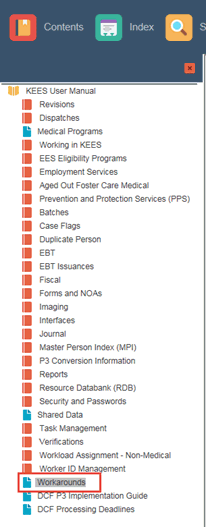
The Workaround page in the KEES User Manual has been updated to reflect all Non-Medical workarounds issued through the KEES Dispatch.
Verification List Page:
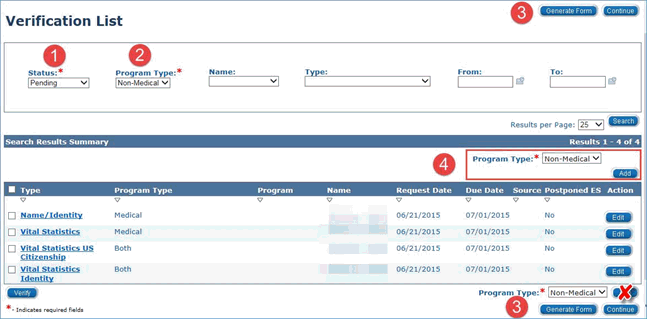
Below is reminder on how to use the Status and Program Type fields as well as the Generate Form button on the Verification List page.
The Status field defaults to Pending and displays all Pending verification records
The Program Type field defaults based on Worker ID and displays verifications by program
The Generate Form button dynamically displays based on the Program Type selected in #2.
If the Program Type is Non-Medical the V000 form generates.
If the Program Type is Medical the V001 form generates.
If the Program Type is Both then no form generates.
When selecting Non-Medical as the Program Type and the Add button from the Verification List page, the Program Type is not consistently holding on the Verification Detail page if the Add button at the bottom of the page is used. Until this issue is fixed, staff should use the ‘top’ Add button as displayed below.
Call Center Phone Number: 844-723-5337
KEES Tier 1 (Access Issues Only)
KEES Repository KEES Medical User Manual KEES Non-Medical User Manual