EDBC rules for HCBS programs are coded to comply with the KEESM requirements for these waivers. If an individual is outside the age limits for the requested waiver the EDBC results displays failed. If the consumer is on a waiver that allows an age exception and you have waiver manager approval, please follow the steps below for the appropriate Wavier. Currently, only the following Waivers have been authorized to receive age exceptions:
Physically Disabled (PD) Waiver
Severely Emotionally Disturbed (SED) Waiver
Autism (AU) Waiver
Currently KEES rules do not allow users to approve certain waivers for individuals outside of the age limits. Such as SED Waiver Under 4 Years Old and AU Waiver Over 6 Years Old. When workers need to authorize coverage for an individual outside the age limits for the SED Waiver and AU Waiver because they meet these exceptions, they should follow the following steps to authorize coverage. For the PD Waiver, worker should be able to process the coverage without having to complete an override.
On the LTC Data Detail page change the HCBS Waiver type to TA then click the Save and Return button.
Run EDBC for the appropriate benefit month.
Select the Medical hyperlink.
On the Medical EDBC Summary page select the Override Medical Summary button at the bottom right corner to change the waiver type.
On the Medical EDBC Override List page, select the Override button for the Medically Needy or SSI Test Category.
On the Medical EDBC Override Detail page, select the Edit button in the LTC Details block.
On the Medical EDBC LTC Override Detail page, select SE or AU from the Level of Care drop-down menu.
Click the Save and Return button.
On the Medical EDBC Override Detail page enter the Start Date as the first day of the EDBC benefit month.
Enter an End Date the last day of the EDBC Benefit Month.
Click the Save and Return button.
Note: Although the LTC Details were updated, the original LTC Details will display on the Medical Override EDBC List page.
On the Medical EDBC Override List page, select the EDBC Override Reason of Administrative Decision. Click the check box next to the overridden budget. Then click the Save and Return button.
On the Medical EDBC Summary page the updated information shows in the Eligible Budgets section of the page. Click the Accept button if the result is correct.
On the EDBC List page select the Save and Continue button.
If necessary, repeat these steps through the come-up month.
Return to the LTC Data Detail page and set the Waiver Type back to SED or AU.
Journal, per valid exception, followed steps in the KEES User Manual in order to authorize the SED waiver or AU waiver.
If there are ANY incomplete LTC Data Detail pages a 1700 Error is generated regardless of whom coverage is requested for.
Hiding additional people on the case will not prevent the 1700 Error.
If the consumer has open KEES coverage, please follow the appropriate process to have the LTC Data Detail page completed.
If the consumer has no current LTC coverage please do not edit or remove these records. These issues need to be reported to the KEES Help Desk.
Please alert the Help Desk if the case is for a pregnant woman or urgent medical.
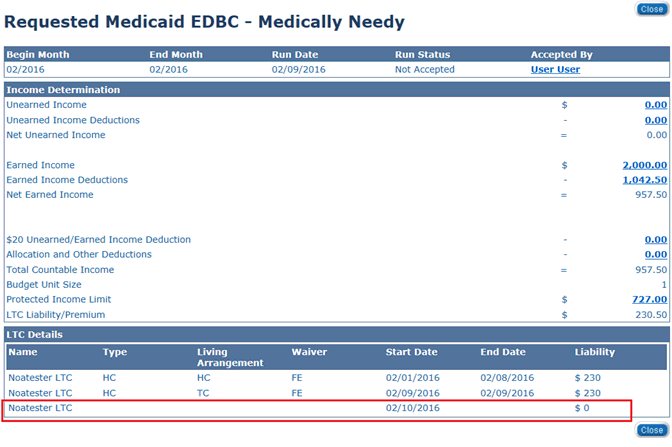
If you see this on the Budget screen it means there is overlapping LTC data for the period of time in the segment with blank codes:
This means for 2/10 to a high date there is conflicting data in the LTC Data Detail pages. The user should Cancel out of the EDBC result (do not Accept and Save) and then navigate to the LTC Data Detail pages to correct the data before running EDBC again.