Provider Portal Account Linking Process
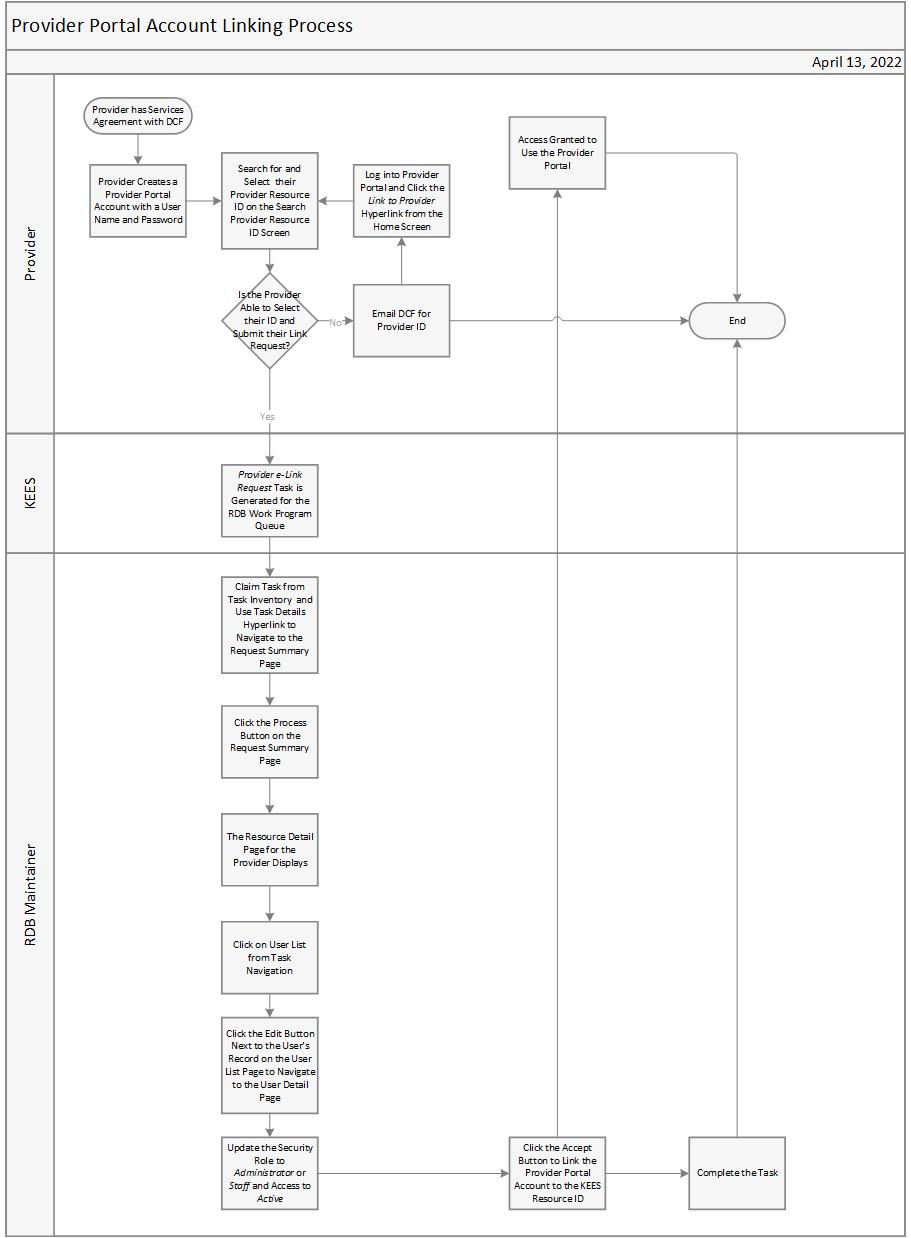
This business process flow shows the high level steps utilized to link a Provider Portal account to a Resource ID in KEES.
In order to use the Provider Portal, Employment Service providers must have a service agreement with DCF. In addition, they need to request to have their Provider Portal account linked to their Provider Resource ID after completing the sign-up process in the portal. The Provider Resource ID is assigned by KEES and given to the provider by DCF. Providers can email DCF.KCEmpSvcsProvdrAgreemts@ks.gov if they do not know their Provider Resource ID.
After completing the account linking process in the portal, KEES generates a Provider e-Link Request task. This task is generated for the RDB Work Programs queue.
To process the task:
Find and claim the task.
Use the Task Inventory page to locate and open the task details window. Select the following filters to locate Provider e-Link Request tasks:
Queue: RDB Work Programs
Task: Provider e-Link Request
Status: New
Navigate to the Request Summary page.
Click the Provider e-Link Request hyperlink within the task details window to navigate to the Request Summary page.
Process the request
Click the Process button on the Request Summary page. The Resource Detail page displays.
Next, click on User List from Task Navigation.
Click the Edit button next to the User’s record on the User List page to navigate to the User Detail page.
Leave the Security Role as Administrator or update it to Staff as appropriate and verify Active is selected in the Access field.
Click the Accept button to link the provider’s account to the Resource ID. Select the Reject button to deny the request.
Complete the task
Select DCF-Complete from the Status Reason drop-down menu in the task details window and click the Complete button.
Providers with Staff access to the Provider Portal can:
View Provider Information
View Client Referrals
Submit Client Attendance Information
Upload a Document
Providers with Administrator access to the portal can also utilize the portal to unlink user accounts and update user security roles within their organization.